Introducing ColorFlow: Create Professional Mesh Gradients in Minutes
January 2026
Mesh gradients are everywhere in modern design. Brand identities, product backgrounds, editorial illustrations — that smooth, organic color flow you see in premium work.
The problem? Creating them has always required expensive software or buried menus in design tools.
Not anymore.
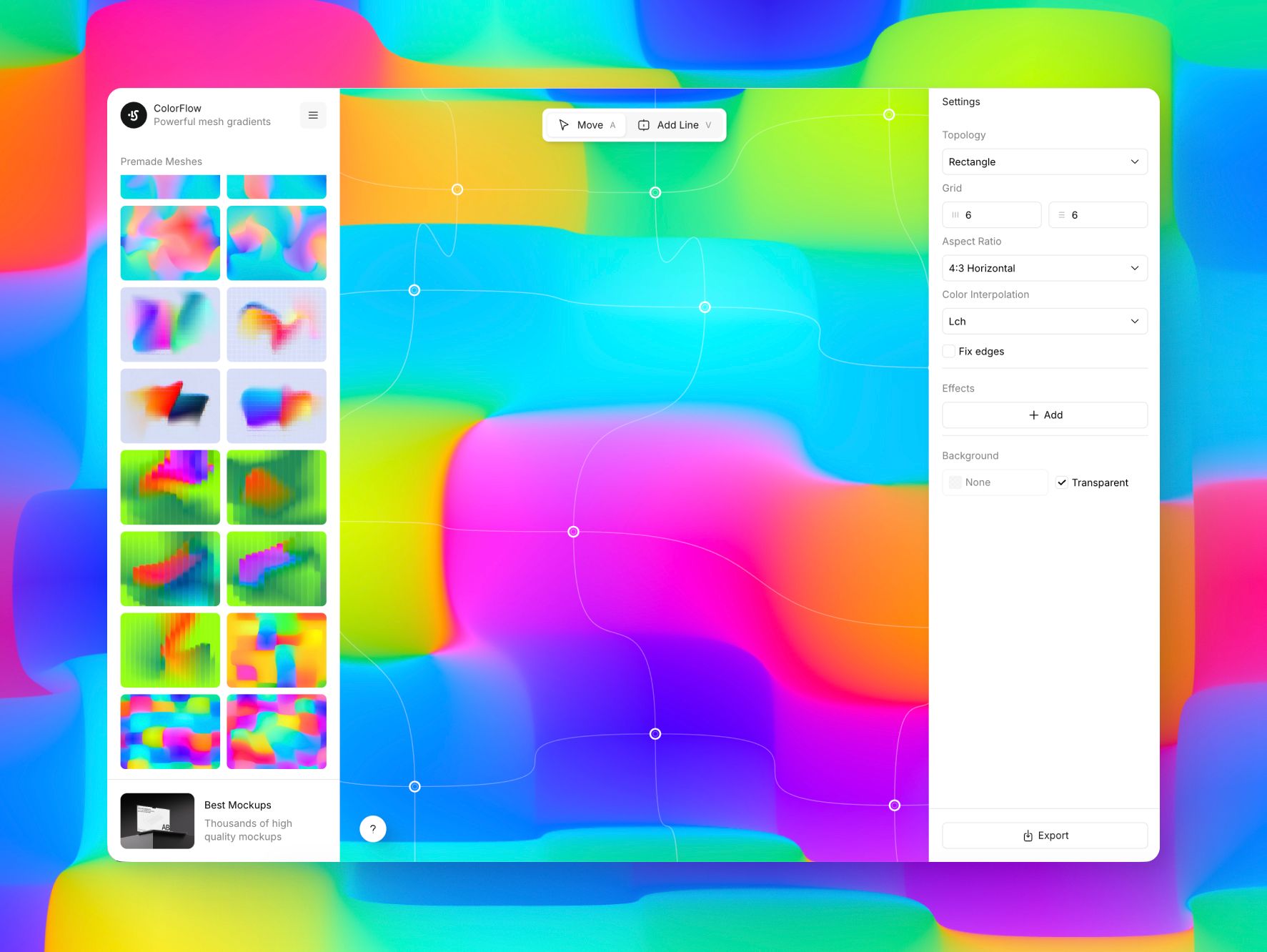
What are mesh gradients?
A mesh gradient is a grid of color points, each influencing the colors around it through smooth, curved transitions.
Instead of simple linear flow, you get organic, painterly blends. The kind that feels handcrafted, not algorithmic.
They're perfect for:
- Hero section backgrounds
- Product packaging
- Brand assets
- Social media graphics
- Print posters
- App splash screens
ColorFlow makes creating them ridiculously simple.
Meet ColorFlow
ColorFlow is a free, browser-based mesh gradient editor. No signup, no install, no paywall.
Just open it and start creating.
- Drag points to position colors exactly where you want
- Pull bezier handles to create smooth, organic curves
- Choose color blending (RGB, OKLab, LCH) for perfect transitions
- Add effects like film grain, blur, or chromatic aberration
- Export at any resolution — PNG, JPEG, WEBP or save as .colorflow to edit later
It's the tool I built when I got tired of not having precise control over mesh gradients.
And it's completely free. Even for commercial work.
Tutorial: Your First Mesh Gradient (5 minutes)
Let's create something beautiful.
Step 1: Open ColorFlow and pick a starting point
Go to [colorflow.app] and you'll see a default 3×3 gradient mesh.
Want more detail? Click the grid controls and switch to 4×4 or 5×5.
Need inspiration? Click "Presets" in the sidebar and load one to customize.
Starting from scratch? Keep the 3×3. It's perfect for learning.
Step 2: Position your color points
Click and drag any point on the canvas. Watch the gradient flow change in real-time.
Pro tip: Don't move the corner points yet — keep edges stable while you experiment with the interior.
Try this:
- Drag the center point toward the top-left
- Move one of the middle edge points slightly inward
See how the gradient already feels more organic? That's the power of non-linear positioning.
Step 3: Change colors
Click any point, then use the color picker that appears.
Start simple:
Watch how the colors blend. Notice anything muddy between purple and amber? That's where color space matters.
Step 4: Switch color interpolation
In the right sidebar, find "Color Interpolation."
Try switching between:
RGB — Vibrant, saturated transitions. Can get muddy between complementary colors.
OKLab — Perceptually uniform. Smoother blends, less mud.
LCH — Cleanest gradients. Best for pastel-to-bright transitions.
For this gradient, use OKLab. Notice how the brown between purple and amber disappears?
Step 5: Add curves with bezier handles
Press V (or click the Move tool) and select any point.
You'll see four handles extending from it — left, right, up, down.
Drag a handle and watch the gradient curves bend around that point.
Try this:
- Select the center point
- Pull the top handle upward
- Pull the left handle to the left
The gradient now flows in smooth, organic curves instead of straight lines.
This is what makes mesh gradients special. You control the shape of the color flow.
Step 6: Add effects (optional but fun)
Click "Effects" in the sidebar.
Add Film Grain:
- Intensity: 0.2
- Size: 1.5
Instant texture. Your gradient now feels printed, not digital.
Add Progressive Blur (experimental):
- Drag the start and end points to control blur direction
- Set End Blur to ~30
Now your gradient has depth — sharp in one area, soft in another.
Step 7: Export
Click "Export" in the top-right.
Hit download. Done.
You just created a professional mesh gradient in under 5 minutes.
Key Features You'll Love
Real-time rendering
Every change updates instantly. No "apply" button, no lag. What you see is exactly what you'll export.
Multiple topologies
Switch between Rectangle and Circle mesh. Different shapes, different vibes.
Preset library
Browse ready-made gradients for instant inspiration. One click to load, then tweak to make it yours.
Professional effects
Film grain, progressive blur, chromatic aberration, glass distortion. Stack them, tweak them, all in real-time.
Keyboard shortcuts
- V — Move points
- A — Add points
- Shift+Click — Multi-select
- Cmd/Ctrl+Z — Undo
- Del — Delete selected point
Power users, you're covered.
Why ColorFlow is Free
We built ColorFlow because mesh gradients should be accessible to everyone. Designers, developers, students, indie makers — anyone who wants to create beautiful color work.
So ColorFlow is free for personal and commercial use.
No trials. No upsells. No "unlock premium features."
Just gradients.
Start Creating
Go to [colorflow.app] and make something beautiful.
If you create something cool, I'd love to see what you build.
And if you have feedback or feature requests, drop them in the discussions. ColorFlow is actively developed, and I'm always looking to make it better.
TL;DR:
- ColorFlow = free mesh gradient editor
- Works in browser, no signup
- Drag points, adjust curves, pick colors
- Export PNG/SVG at 4k resolution
- Free for commercial use
High-end mockups for serious design work
Start
Edit mockups online — in browser
- Online Mockup Editor
- PNG/JPG Export
Pro
Full access to all resources and tools
- Everything in start
- Download PSD, Sketch, Figma Files
 Mockup Plugin for Figma Access *
 mckp.live Access *
* Included in Pro — activate with a one-time account connection in your profile
Start
Edit mockups online — in browser
- Online Mockup Editor
- PNG/JPG Export
Pro
Full access to all resources and tools
- Everything in start
- Download PSD, Sketch, Figma Files
- Mockup Plugin for Figma Access *
- mckp.live Access *
* Included in Pro — activate with a one-time account connection in your profile
What designers say
Chosen by creators from top platforms
*You will need to connect online tools in yourprofile. The standard VAT rate may be charged, following the law of your country