3 Ways to Create Presentation-Ready UI Visuals for Different Platforms with ls.graphics
A presentation-ready UI visual shows your design in a format that helps the audience better understand its essence. There are three main types of such visuals: a static device mockup (to convey context), an animated mockup (to demonstrate a sequence of actions) and an interface image without a device (to put the focus on the design decisions themselves). Within one project, you can use all three, keeping them in a consistent style.
1. Static Device Mockups: Context and Composition
Static mockups place the interface in a recognizable setting: for example, one smartphone for a case-study cover, several devices of different sizes, or a close-up of a single feature.
In the online mockup generator, start with the Static section: choose a scene, click the “+” icon in the screen area, upload your design and adjust its position in the settings (Adjust media). Use the sizes recommended for the chosen scene, set up the visual effects and then export the result as PNG, PSD or SVG. The generator only fits your design into the scene without changing the interface itself.
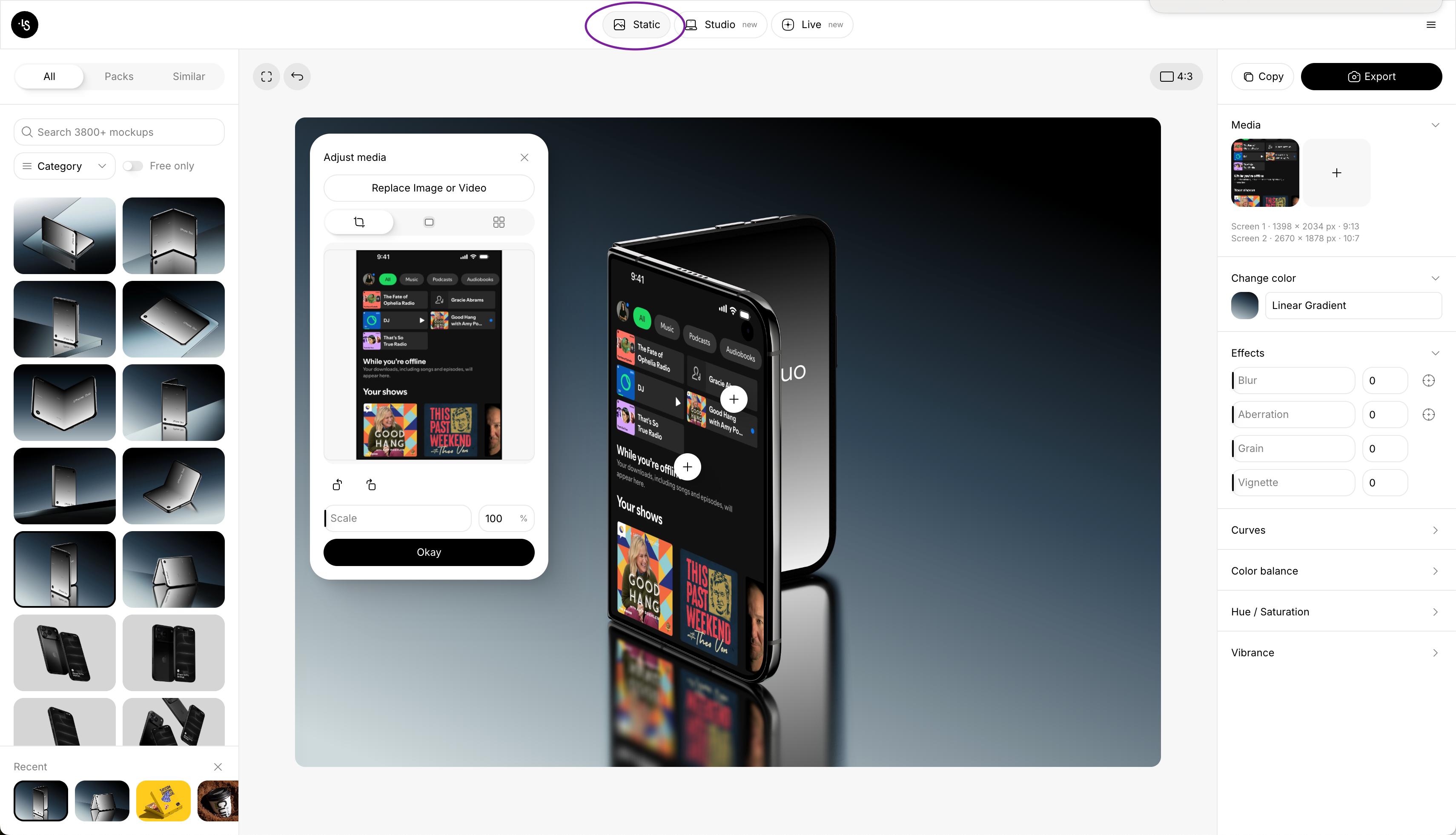
In the mockup generator, you can find both photorealistic device mockups and premium-quality branding mockups, high-quality free mockups and premium scenes available only by subscription.
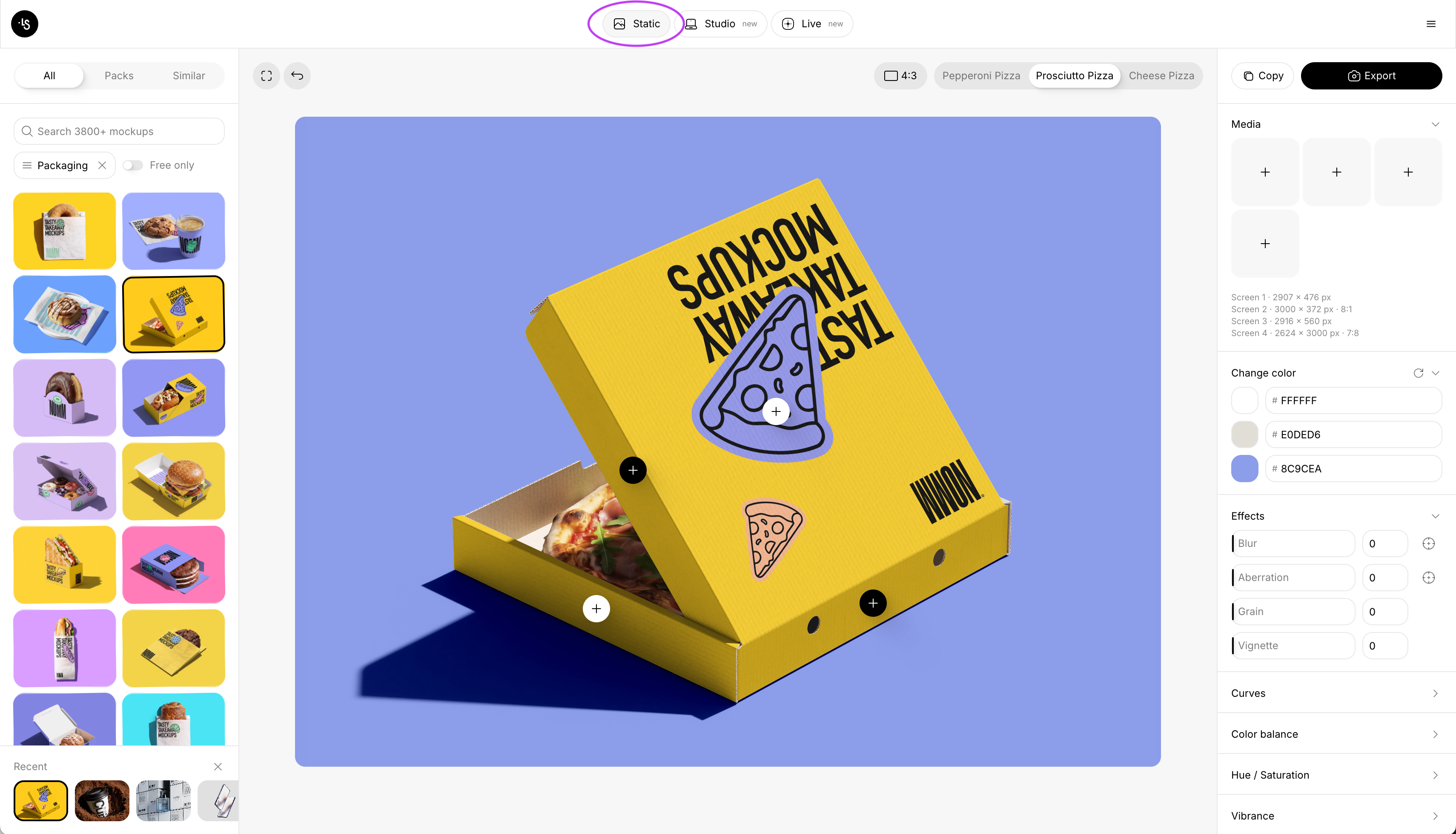
Step-by-step instructions for working with static mockups (adding a design, changing the background and exporting) can be found in the corresponding Guides.
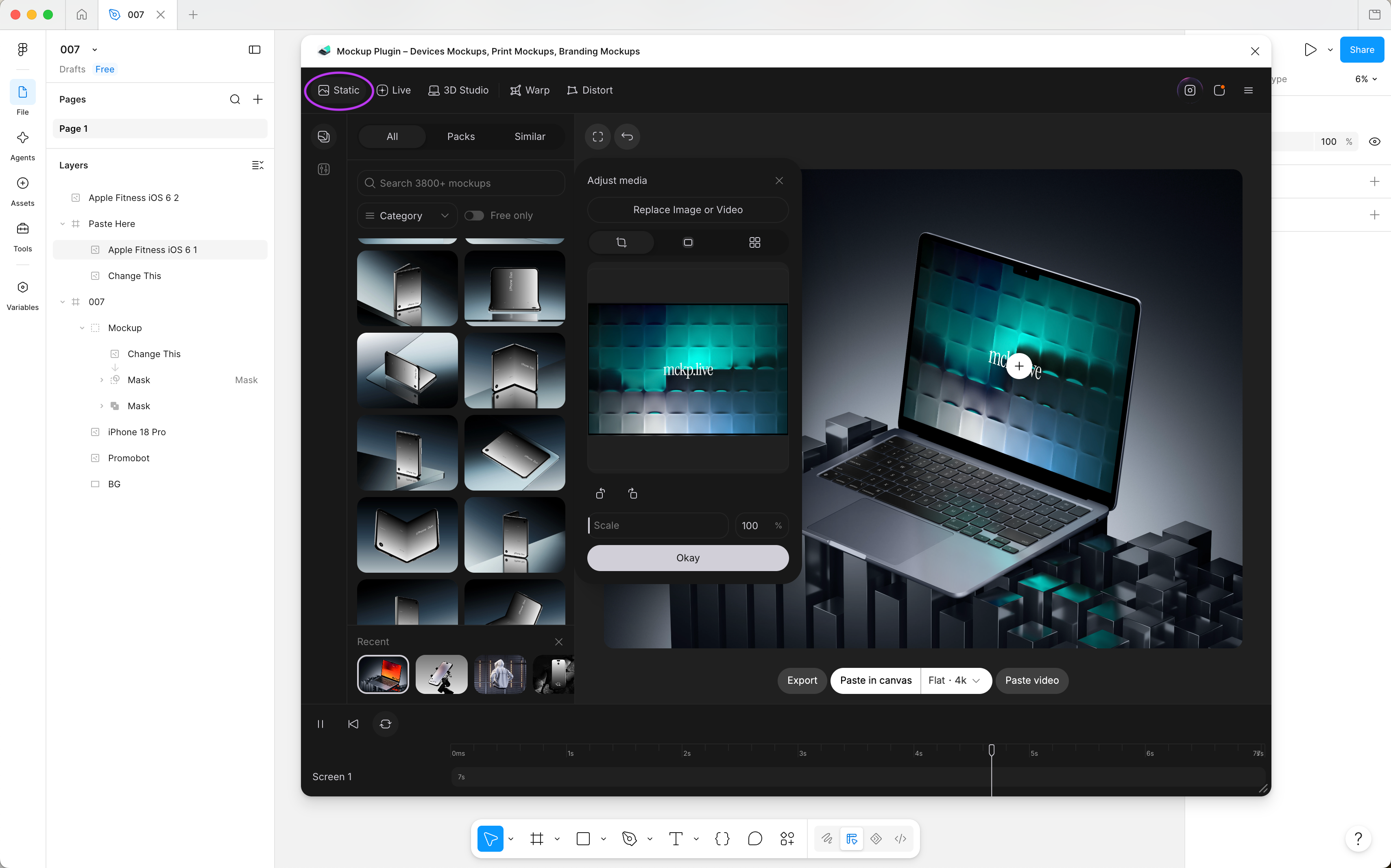
You can also work with static mockups in the Figma plugin. To do this, install the plugin, create a Figma file, add your design to it and launch the mockup plugin. The next steps are the same as on the website: choose a scene, add your design, set up the effects, and your mockup is ready in minutes.
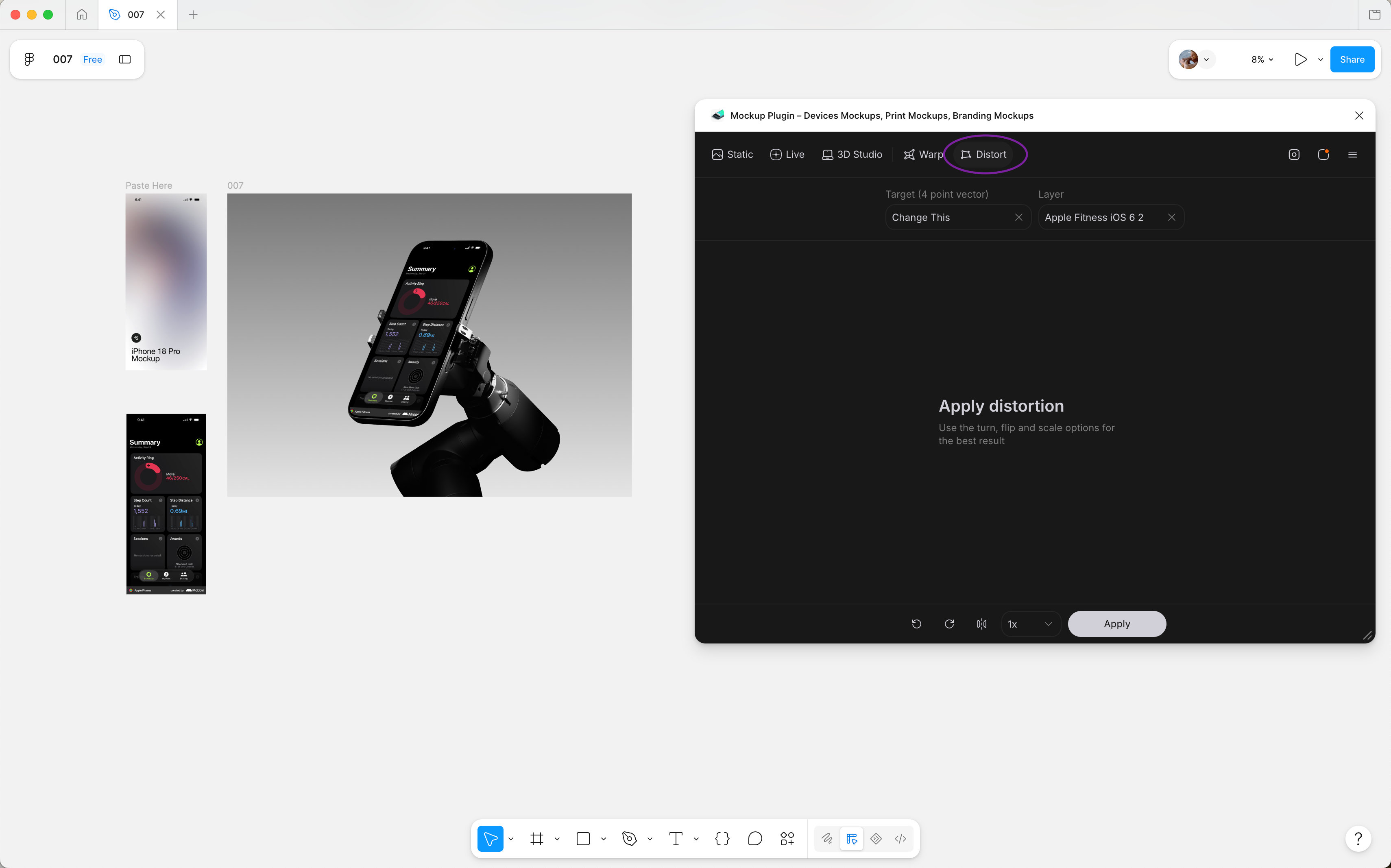
If you work with source files, the Figma mockup plugin will help again. Do the following: download the .fig file of a suitable mockup from ls.graphics and import it into your Figma dashboard, open the added file and launch the plugin. Select the “Distort” mode, choose the target object (“Change This”), pick an image (from the canvas or from your computer) and check the orientation and sharpness of the image, following the official guide to the Distort tool. Then click “Apply”.
Static mockups are ideal for covers, client presentations and the main screen (hero section) of a landing page. The downside is the loss of usable screen area: because of the angle and the device elements, small text can become unreadable, and a still image cannot convey the interaction process. For discussing interface details, it is better to use a flat (front-facing) view.
2. Animated Device Mockups: Ready-Made Motion Scenarios or Custom Animation
An animated mockup lets you use a timeline to demonstrate a feature or guide the viewer’s attention from the overall view to the details. Choose a ready-made scenario if the motion built into it supports your idea; create your own sequence when it is important to build the story through a specific order of actions and timing.
Live mode offers scenes with built-in animation. Choose a suitable one, replace the image on the screen (through the Media and Adjust media sections), set up playback (using scrubbing, looping and speed controls) and then export the result as MP4 or WebM.
The Live Mockups guides describe all the steps in detail: setting up a 3D scene, adding your design, adjusting the camera and lighting, controlling the animation and exporting video.
In Studio mode (3D Studio), you can animate the camera and the device using keyframes on a timeline. Add your interface (UI), set the angles and movement paths, preview the result and export it. It is also possible to hold the camera on the main screen. As in Live mode, export in MP4 or WebM format is available here too.
You can also find a detailed description of the editing process in Studio mode in a dedicated guide on the ls.graphics website: Guides.
The LS Graphics Mockup Plugin for Figma lets you do the same things right from the selected frame with your interface: open a scene in Live, adjust the angle and lighting and then export the finished clip. To create your own sequence, use Studio, where you can set keyframes for the camera and the device; export of MP4 and WebM files back to the Figma canvas is also supported.
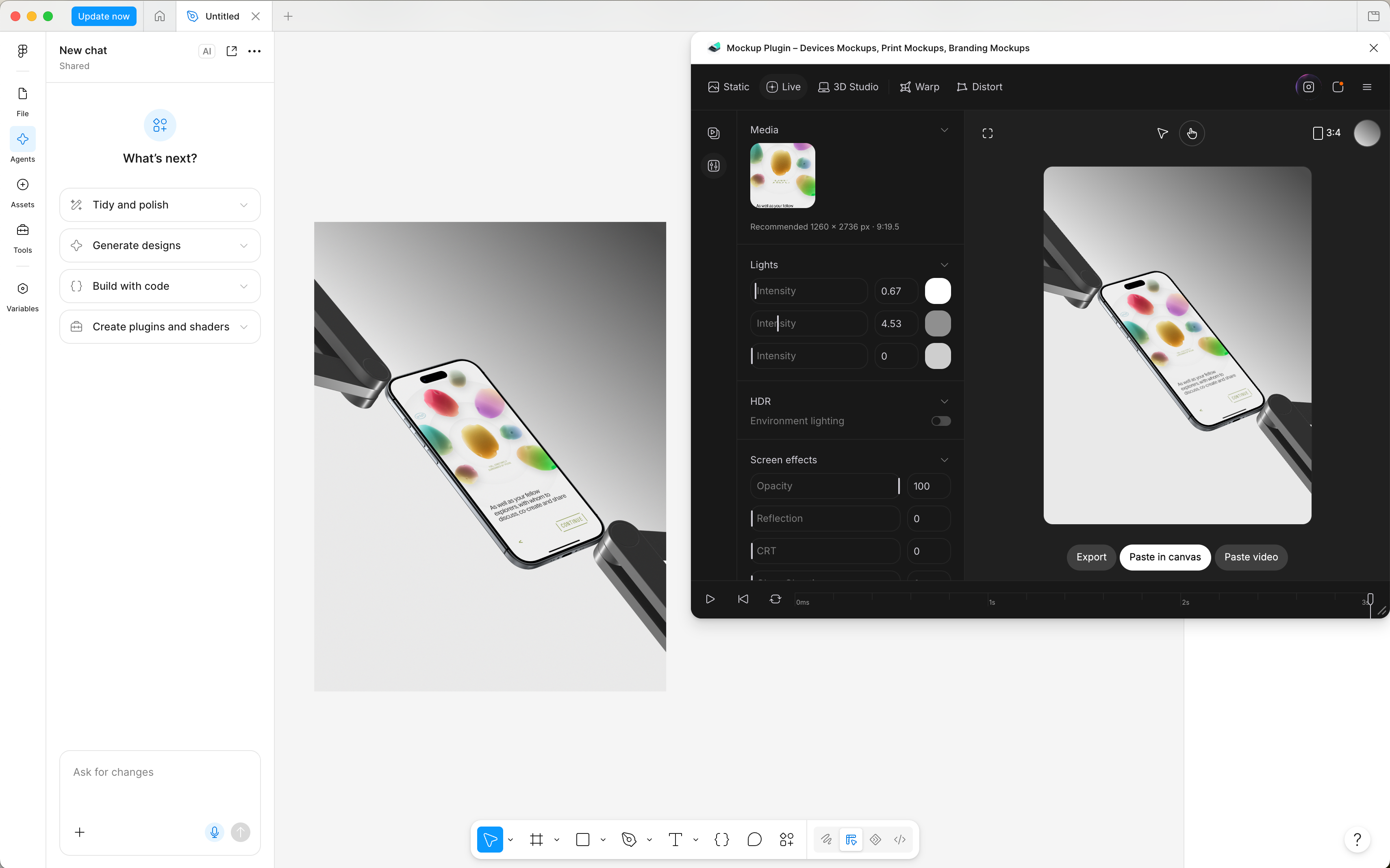
Use the plugin if your interface is in Figma, and the online mockup generator if you already have exported images.
A rotating phone with a still screen demonstrates only the movement of the device itself, not interaction with the app. To show, for example, a booking process, use a recording of that process as the screen content in a suitable scene.
Video is great for demonstrating a service on landing pages, for presentations with commentary or for short announcements on social media. However, this format requires additional setup and rendering time, and it increases file size.
3. Device-Free UI Shots: Put the Interface First
Designed by Nurun Nabi(Dribbble)
A device-free UI shot presents the interface without hardware, inside a designed scene instead: a themed background, 3D objects and layered elements. The scene can be static, as a still image, or animated: the design itself moves, or scrolls through its frame as a full-page long shot or as slides. The screen stays the hero, while the scene sets the mood a device frame would otherwise provide. Wind turbines and glass crystals around an energy dashboard tell the story before anyone reads the UI.
To build one, place your main screen in a presentation frame, choose theme-matching objects and overlap them with the screen to create depth. Take scene colors from the interface palette, and keep key text sharp. If animated, pause on key screens.
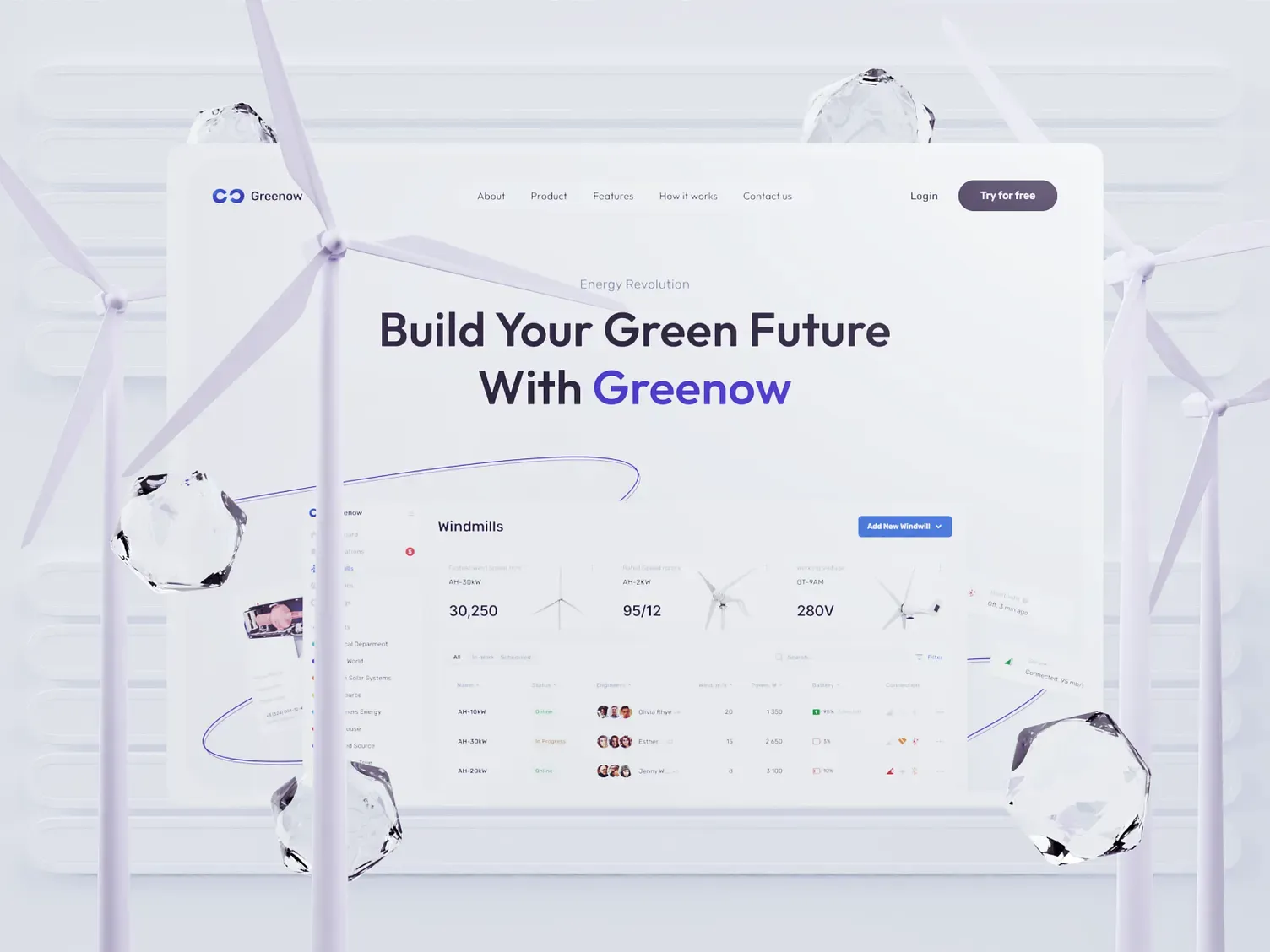
Designed by Phenomenon Labs(Dribbble)
For Dribbble, lead with one compact visual idea. For a Behance case study, expand it into a sequence that explains decisions. For Pinterest, make a self-contained card with a clear title and enough context to work outside the full project.
This gives the interface more room and personality than a device frame. The limitation is weaker real-world context and the risk that decoration overpowers the product, so keep objects secondary.
Which Format Should You Choose?
| Approach | Tools | Best for | Main limitation |
|---|---|---|---|
| Static | Static in online mockup generator or Figma plugin; Figma sources with Distort | Quick cover scan; client slides | Limited explanation of behavior |
| Animated | Live or Studio in mockup generator or Figma plugin | Guided walkthrough; landing-page video or social clip | Playback demands time and attention |
| Device-free | Figma frames and layouts | Detailed case study; Behance, Dribbble or Pinterest card | Less device context |
A static cover introduces the app, an animated clip demonstrates a key flow, and a device-free layout explains the details.
FAQ
When should I leave the device out?
When typography, components or UI decisions need more space. Add short annotations so the shot explains the design.
Can I create animated mockups in the Figma plugin?
Yes. The LS Graphics Mockup Plugin supports Live scenes and Studio animation, with MP4 and WebM export documented for Studio.
Should I use ready-made or custom motion?
Choose ready-made scenes in Live Mockups for a fast result: pick a scene, add your design and export. Use Studio for custom setup, when reveal order, camera movement or timing must follow a specific story.
Which format works best for a case-study cover?
A static mockup with one dominant screen. It reads at a glance, and a flat detail view can follow.