5 Figma Plugins That Save Hours of Real Work
2026-04-20T09:10:44.092ZWe all know that feeling: you sit down to do something creative, and an hour later you realize you've been renaming layers, manually warping mockups, and hunting for icons on third-party sites. Routine is the quiet killer of design time. The good news: Figma's plugin ecosystem has grown so much that most of these tasks now take just a few clicks. Here are five plugins that genuinely change how you work — not in theory, but in practice.
1. Mockup Plugin by ls.graphics
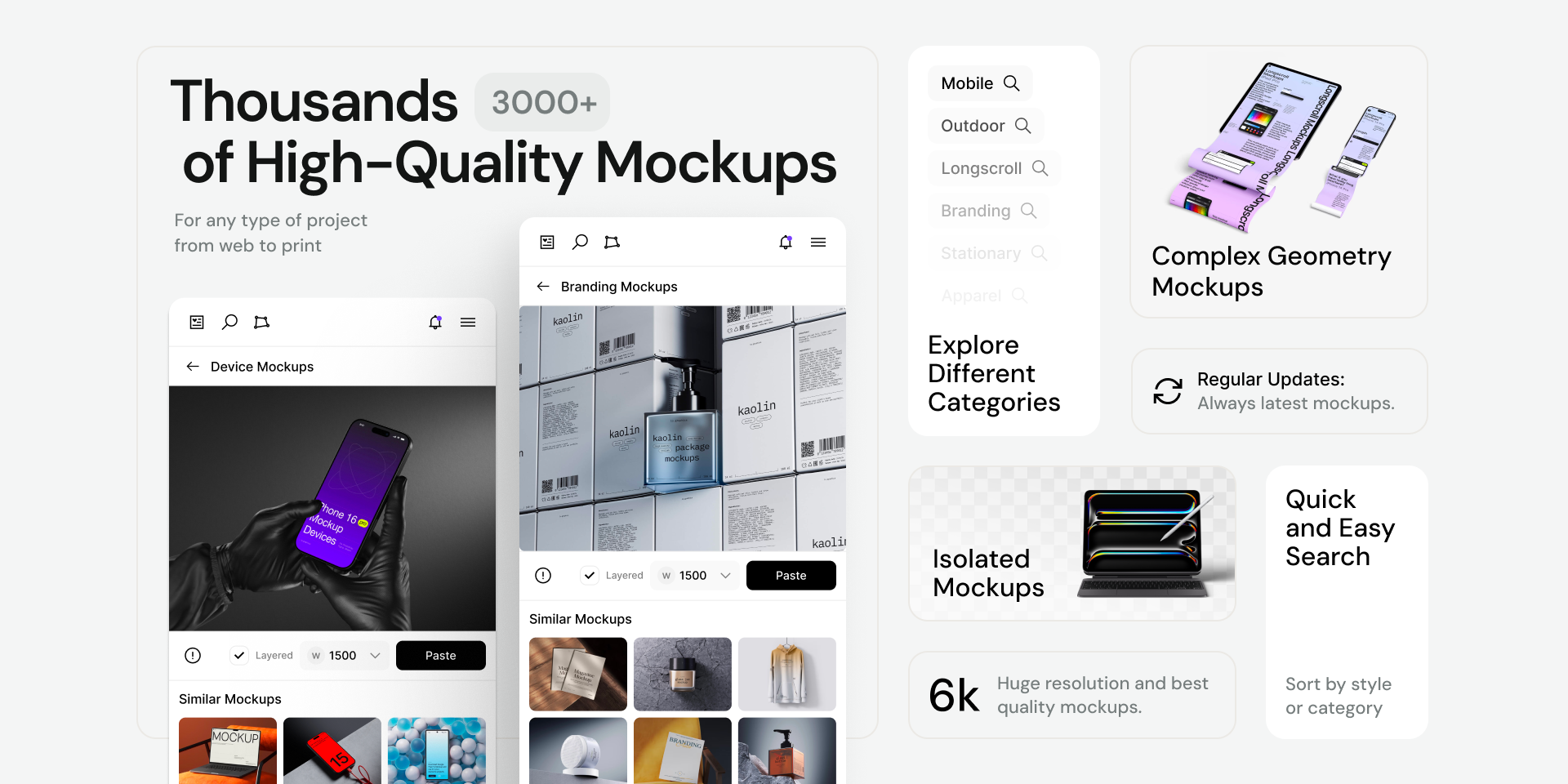
The plugin lets you instantly place your design into device mockups — smartphones, tablets, laptops — as well as print templates: packaging, posters, t-shirts, mugs.
The library contains hundreds of high-quality device mockups and branding mockups, including a section with free mockups to get started. Export is available up to 6K resolution with unlimited downloads. Distort mode lets you apply your design to any third-party mockup with precise edge deformation, while Warp mode gives you full freedom to transform images freely. Everything works inside Figma — no need to switch to another app.
Best for: client presentations, portfolio cases, marketing materials
2. Unsplash by Unsplash
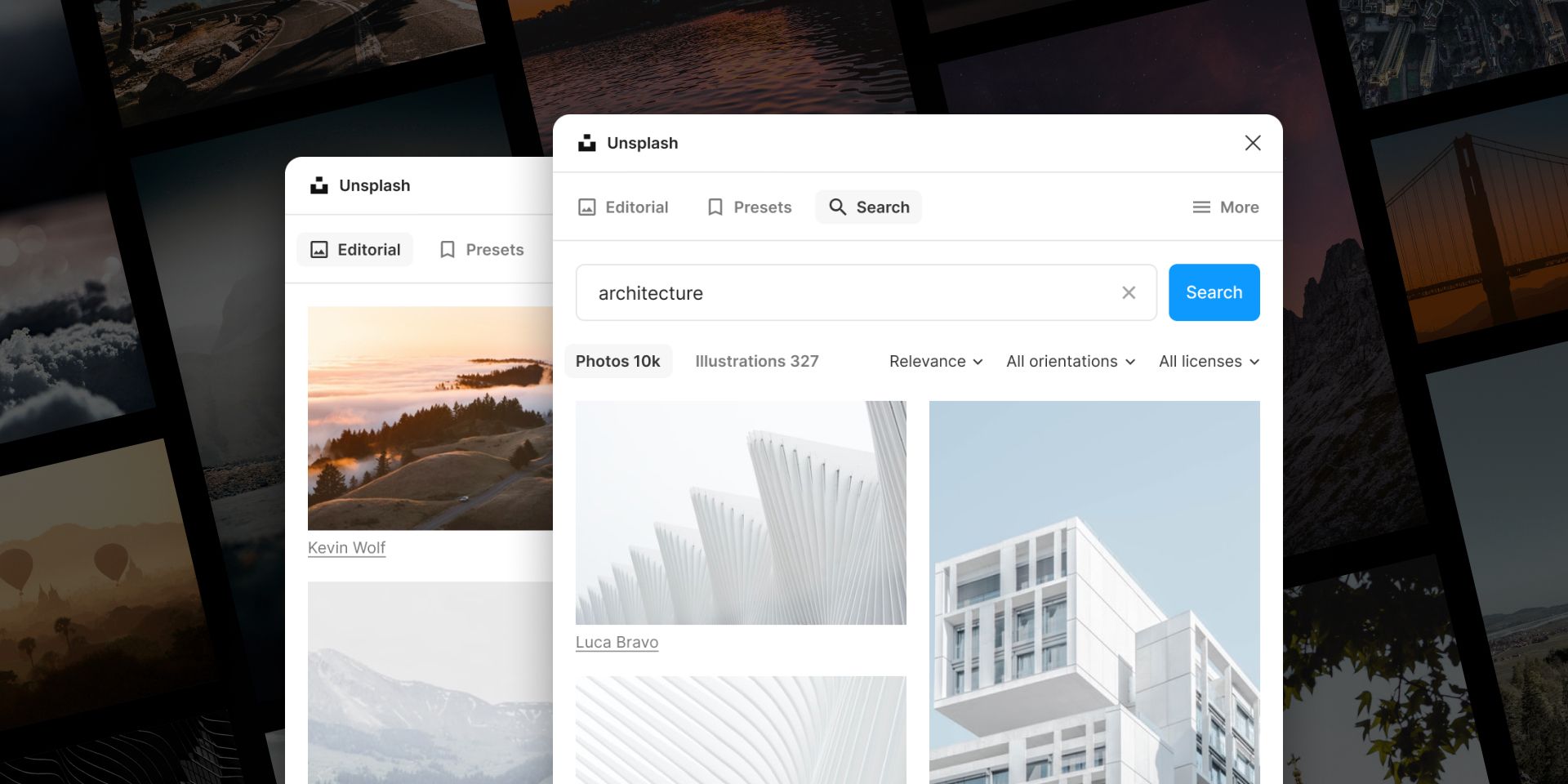
Gray placeholder rectangles are the enemy of any design presentation. Real photos instantly set the right context and help everyone see how the design will look in the real world.
The Unsplash plugin brings the entire photo library directly into Figma. Search by keyword, instant preview, insert with one click — no browser, no downloads, no dragging. All photos are free for commercial use, which removes the licensing question during prototyping.
Best for: landing pages, apps, presentations with real content
3. Iconify by Sadik Sajid
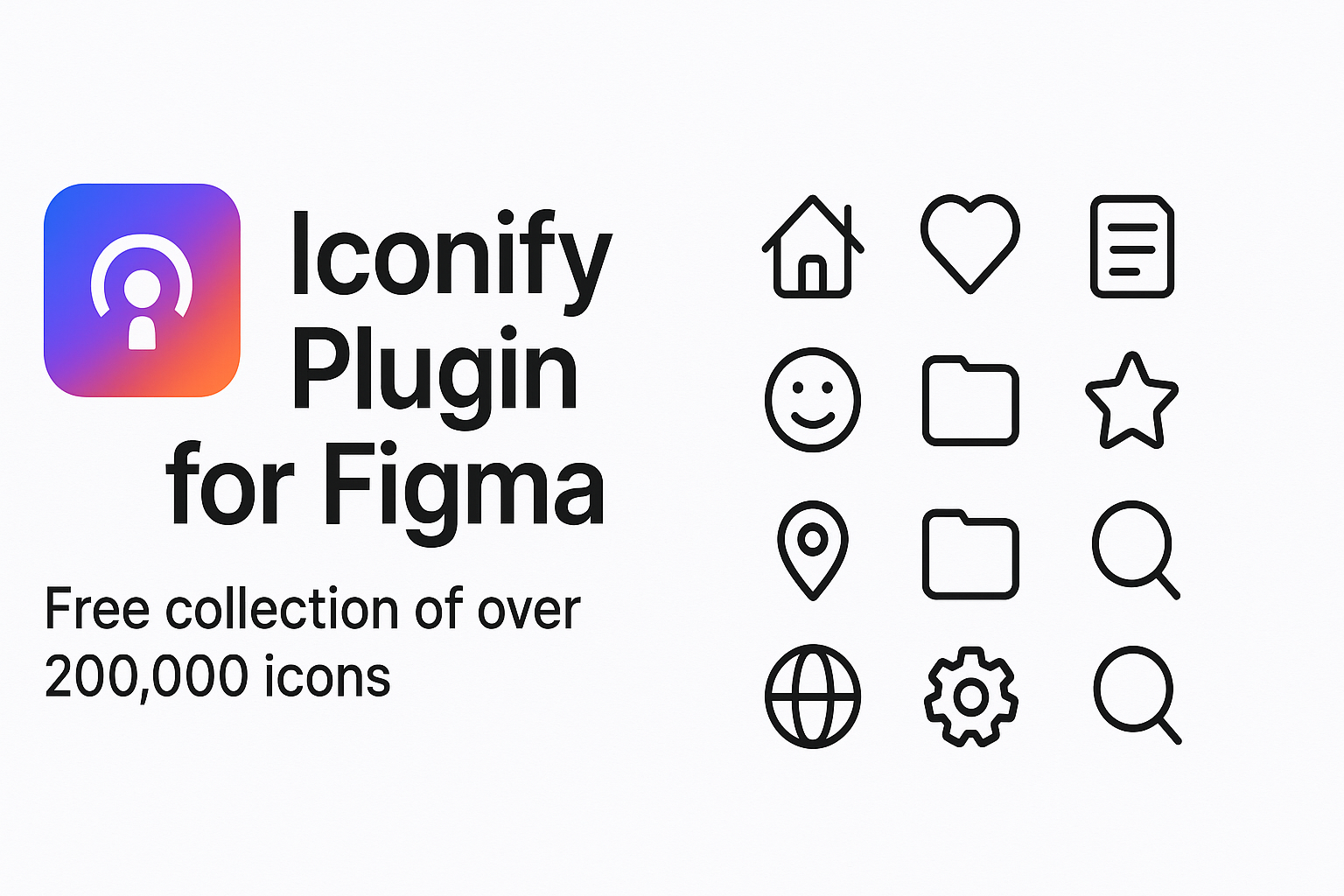
Every designer has spent twenty minutes hunting for one icon: tabs, SVG, import, recolor — and still not right. Iconify solves this in seconds.
Over 150,000 icons from 100+ sets — Material, Feather, Phosphor, Heroicons, and others — right inside Figma. Search by meaning, pick a style, set size and color, insert into your layout. No browser, no extra steps. Invaluable when working with design systems, when you need to quickly compare icon styles before making a final call.
Best for: UI design, design systems, rapid prototyping
4. Automator by Diagram
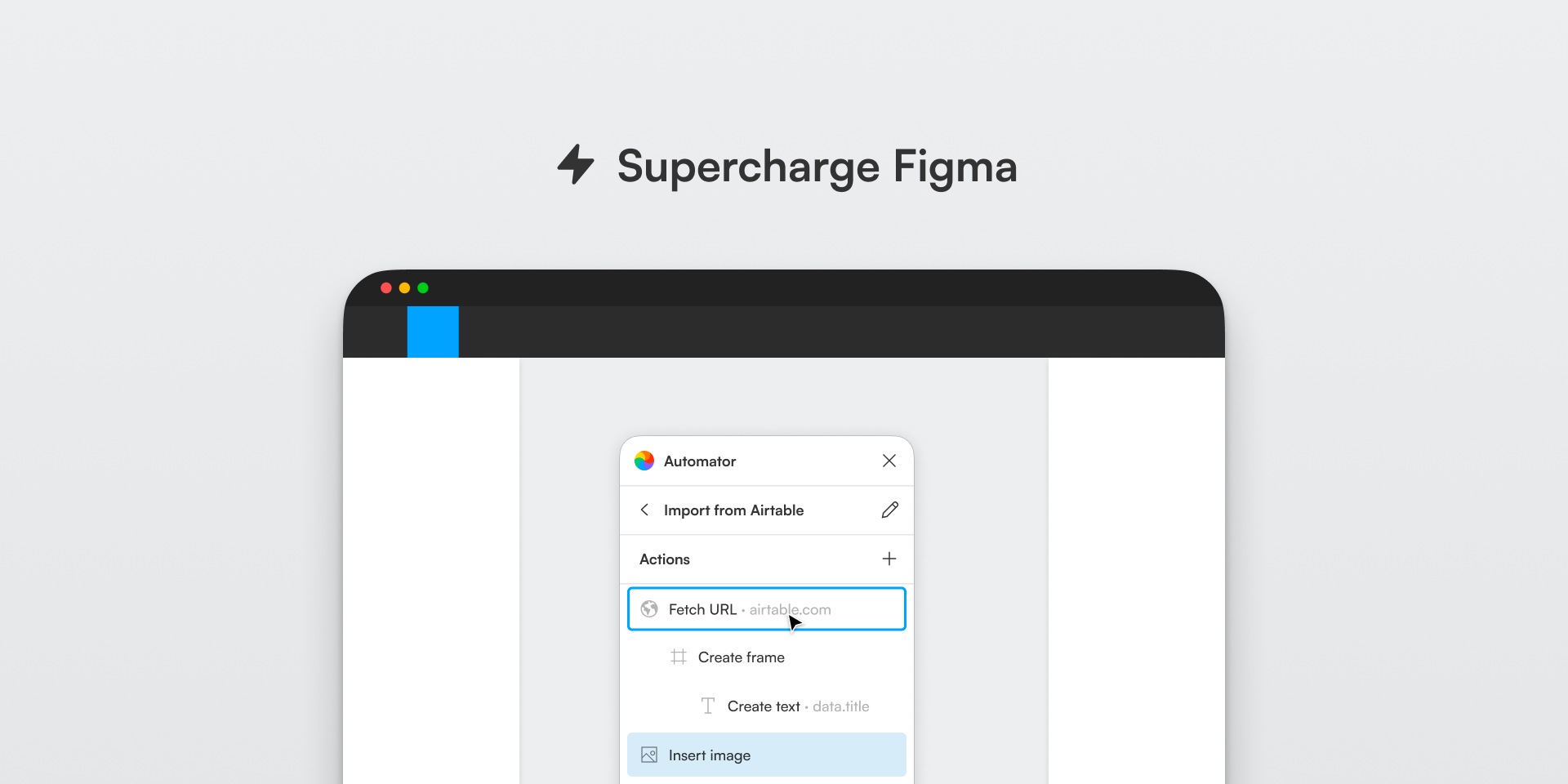
There's a moment in every designer's work when you catch yourself thinking: "I've done this eight times already." Renaming layers by pattern, applying the same style to a hundred elements, exporting with identical settings — all of it eats time.
Automator lets you record macros and run them with one click. Complex action chains can be saved and shared across the team — especially useful for maintaining consistency on large projects.
Best for: large projects, design systems, team workflows
5. Content Reel by Microsoft
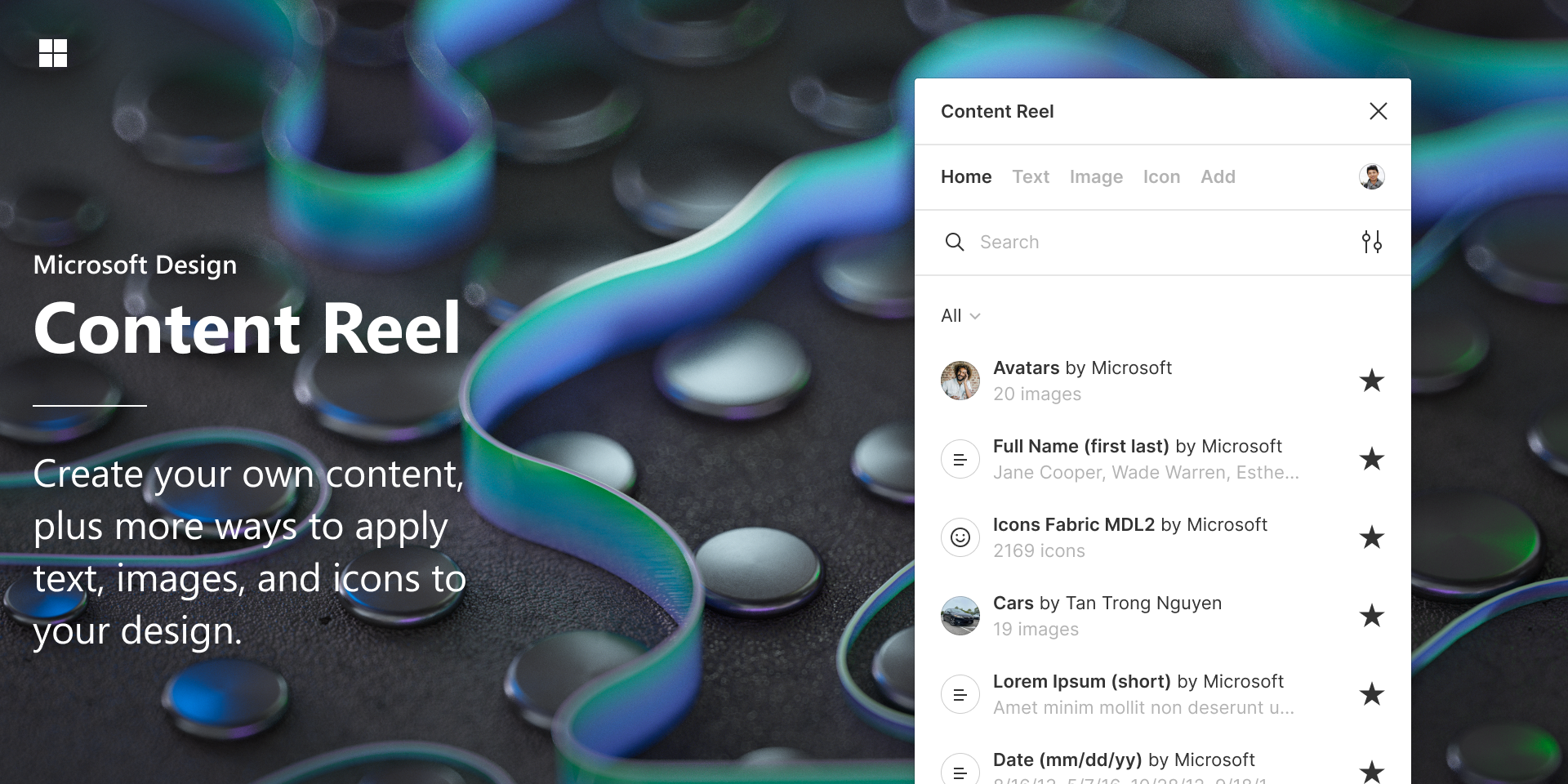
A layout with "Lorem ipsum" and "First Last" is a layout nobody takes seriously. The client can't see the product, the team can't spot layout issues. Content Reel fixes that.
The plugin fills text fields with realistic data — names, addresses, dates, phone numbers, email addresses — in one click. Connect ready-made datasets or create your own for a specific project. The layout immediately looks like a real product you can show without any disclaimers.
Best for: product design, usability testing, client presentations
Key principle: don't try to install everything at once. Start with the one plugin that solves your most frequent pain point — and it will pay off within the first week.
Bonus: 3 more plugins — short and to the point
Stark
Accessibility checking right inside Figma: contrast, color blindness simulation, focus order. Essential if you're building products for everyone — not just people with perfect vision. Catches problems before they reach development.
Vectary 3D Elements
Ready-made 3D objects that drop into your layout like regular PNGs — with adjustable lighting, angle, and color. No Blender, no separate app needed. Works great for landing page hero sections and product mockups.
Typescales
Generates a type scale from a base size and ratio — Major Third, Perfect Fourth, and other classic proportions. Instead of manually calculating what h2 should be if h1 is 48px, the plugin builds the entire hierarchy in a second.
Frequently asked questions
Are Figma plugins free?
Most plugins on our list are free and available to all Figma users, including the free plan. Some, like Stark, offer a paid Pro version with extended features — but the free tier covers most use cases. All plugins are installed the same way: via Plugins → Browse plugins in Community.
Do plugins slow down Figma?
Not on their own. Plugins don't run in the background — they only activate when you launch them. That said, if you have many heavy files open at once, Figma may slow down regardless of plugins. Keep your installed plugins to what you actually use — that's good workspace hygiene.
Can mockups from the plugin be used in commercial projects?
Yes. Mockup Plugin by ls.graphics allows you to use generated mockups for commercial purposes — client projects, portfolio, marketing materials, and publications. Always check the license of any specific plugin in its Figma Community description — terms vary by author.
Conclusion
Figma is already a powerful tool, but the right plugins turn it into an environment with minimal context-switching and maximum focus. The eight plugins covered here handle a wide range of tasks: mockups, photos, icons, automation, content, accessibility, 3D, and typography.
Try adding them one at a time and see how much time opens up within the first week. That time is better spent on what made you become a designer in the first place — ideas worth building.