Japanese Graphic Design: Why Is It So Special?
2026-06-16T11:20:46.027ZOpen any design inspiration feed and you'll spot it instantly — that unmistakable blend of calm and boldness, of empty space and explosive color, that defines Japanese graphic design. But what actually makes it stand out from Western or other Asian design traditions? The answer lies in a handful of recurring principles, each shaped by centuries of history, philosophy, and craft.
A Tradition Rooted in Centuries of Visual Culture
Japanese graphic design didn't appear out of nowhere. It grew from centuries of woodblock printing, calligraphy, and theatrical posters for Kabuki performances. Artists like Hokusai and Hiroshige shaped a visual language built around flat color, strong outlines, and dramatic composition — elements that still echo through modern branding, packaging, and editorial layouts today.
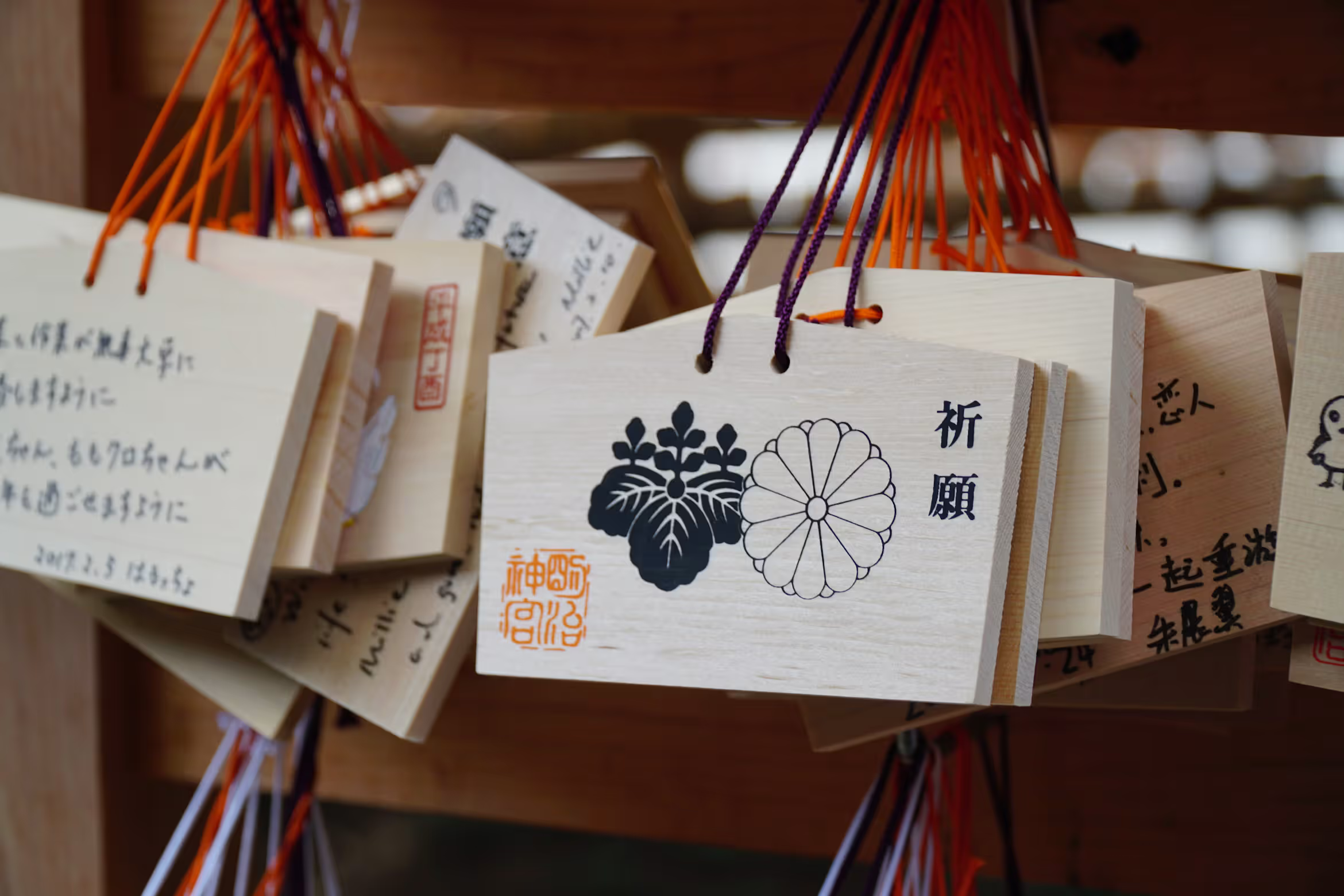
When movements like Bauhaus and Swiss modernism reached Japan in the 20th century, designers didn't simply copy them. They filtered these influences through their own aesthetic sensibilities, resulting in something precise, restrained, yet emotionally rich. Several core principles define this approach — and together they form a visual language unlike any other.
The Core Principles of Japanese Graphic Design
Negative Space
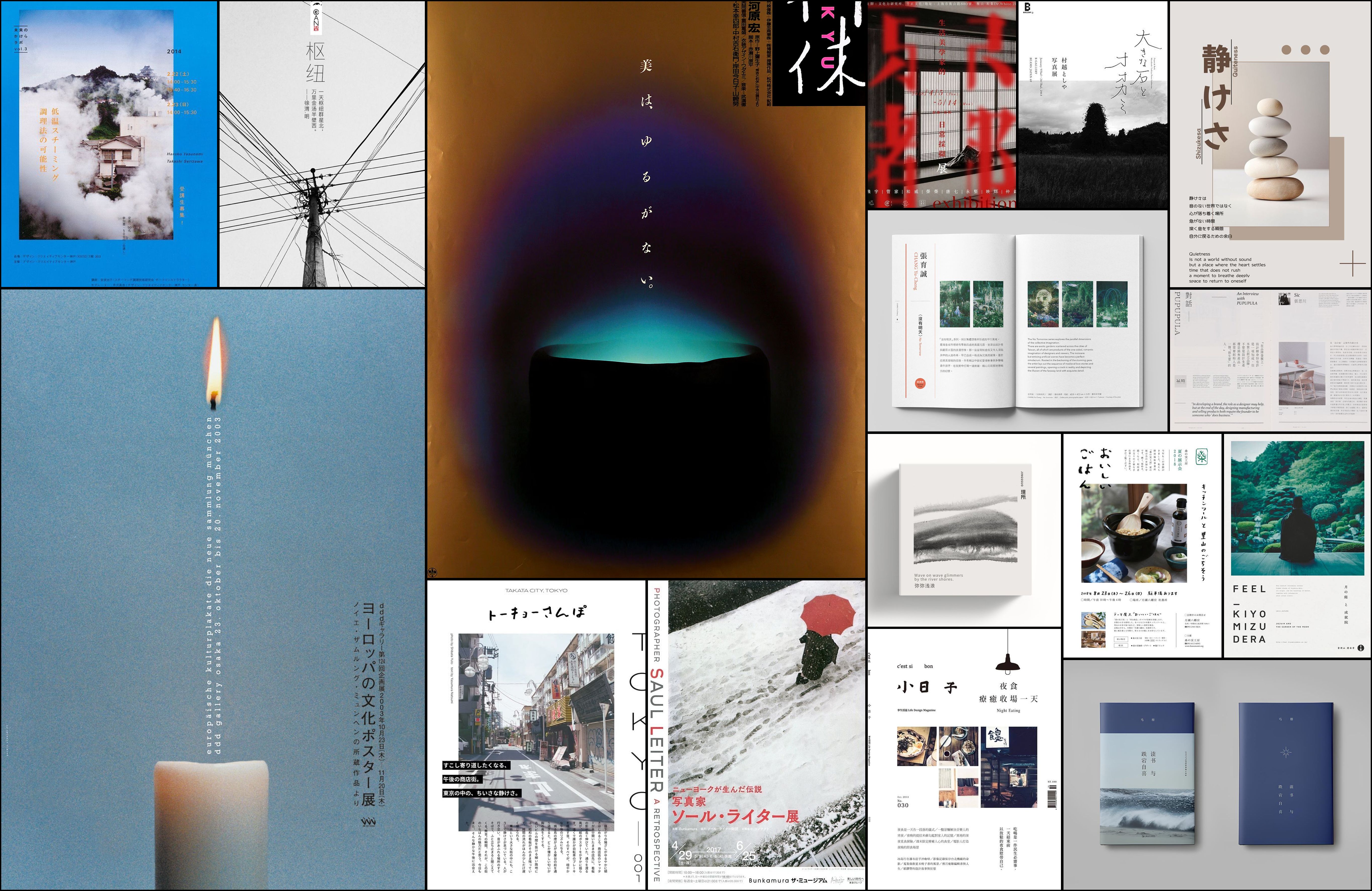
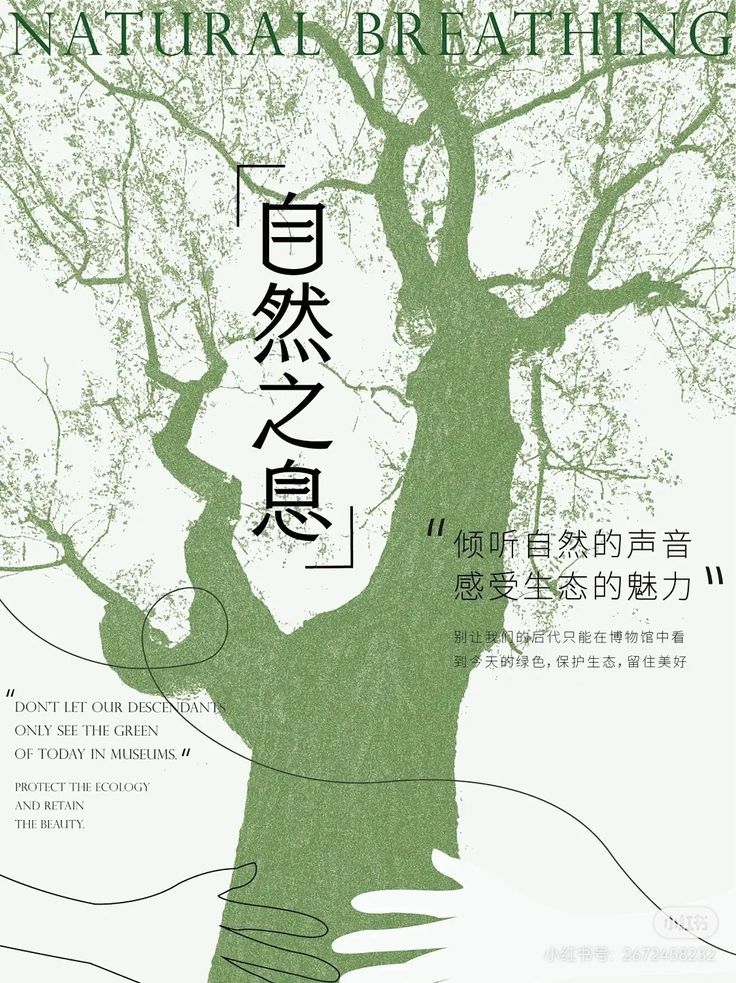
One of the first things people notice about Japanese design is how much "nothing" it contains. This isn't laziness or minimalism for its own sake — it's a concept called ma (間), the meaningful pause between elements. Empty space isn't a void to be filled; it's an active part of the composition, giving the eye room to breathe and the design room to feel intentional. Compare this to a lot of Western advertising, where every inch tends to be packed with information — Japanese design trusts the viewer to slow down and look closer.
In the space between things, meaning is born.
— Traditional principle of ma (間) in Japanese design
Typography as Art
Japanese typography faces a unique challenge: combining three writing systems (kanji, hiragana, and katakana) with Latin characters, often in the same layout. This constraint has pushed designers to become masters of rhythm, balance, and contrast. Vertical and horizontal text often coexist, and the spacing between characters becomes a design decision in itself. Characters are frequently treated as visual shapes rather than just carriers of meaning, blurring the line between illustration and text.
A single character can hold the weight of an entire composition.
— Principle of Japanese typographic design
Color With Purpose
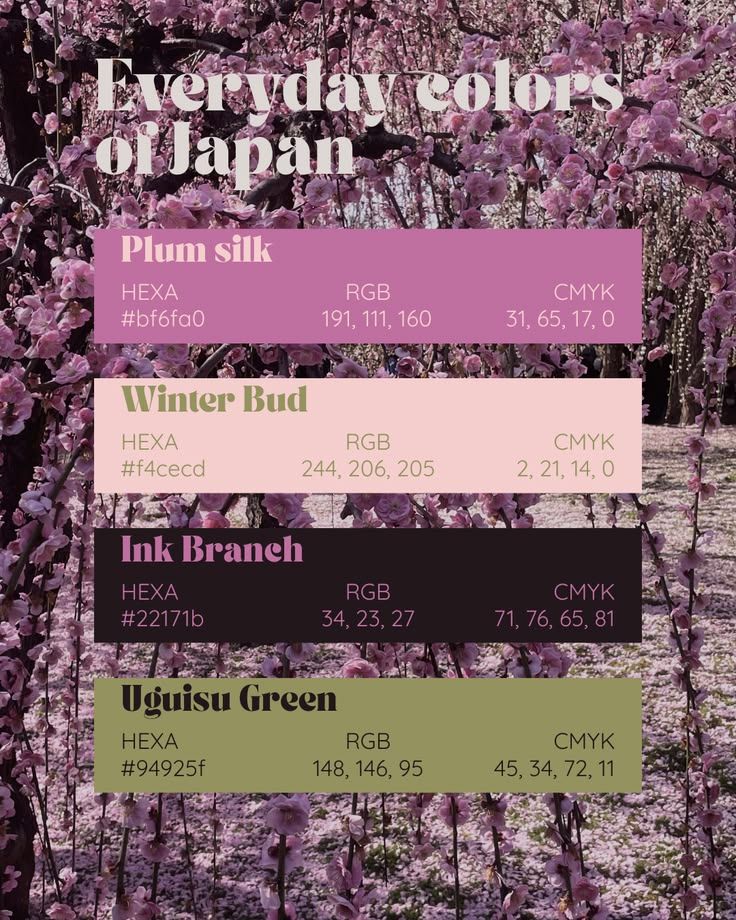
Japanese design doesn't reach for color carelessly. The traditional palette — Nihon no dento-shoku (日本の伝統色) — includes hundreds of named colors, each carrying cultural weight: beni crimson, ai indigo, the purity of white, the formality of black. These aren't stylistic choices — they're a visual vocabulary. Seasons reinforce it further: cherry blossom pink means spring, burnt orange means autumn. But place matters just as much as tradition — the lacquer reds of Kyoto read entirely differently from the electric blues of Tokyo's Shinjuku, or the salt-grey of a Nagasaki coastline. In Japanese design, picking a color is always a geographic and cultural decision, not just an aesthetic one.
Color should never compete with meaning — it should carry it.
— Japanese design philosophy on color
Precision and Craftsmanship
Japanese graphic design is rooted in monozukuri — the cultural obsession with craft, refinement, and continuous improvement. On the page, this translates into an almost rigid discipline: grid systems are treated as sacred, type spacing is adjusted to the fraction of a point, and the relationship between every element is considered before anything is finalised. Nothing lands on a layout by accident. This precision extends to print finishing too — the choice between matte and gloss, the weight of the paper, the placement of a single rule or a spot of foil — each decision is made with the same care as the design itself. The result is work that doesn't just look considered. It feels it.
Perfection is not a finished state, but a direction.
— Spirit of monozukuri in Japanese craftsmanship
Asymmetry and Dynamic Balance
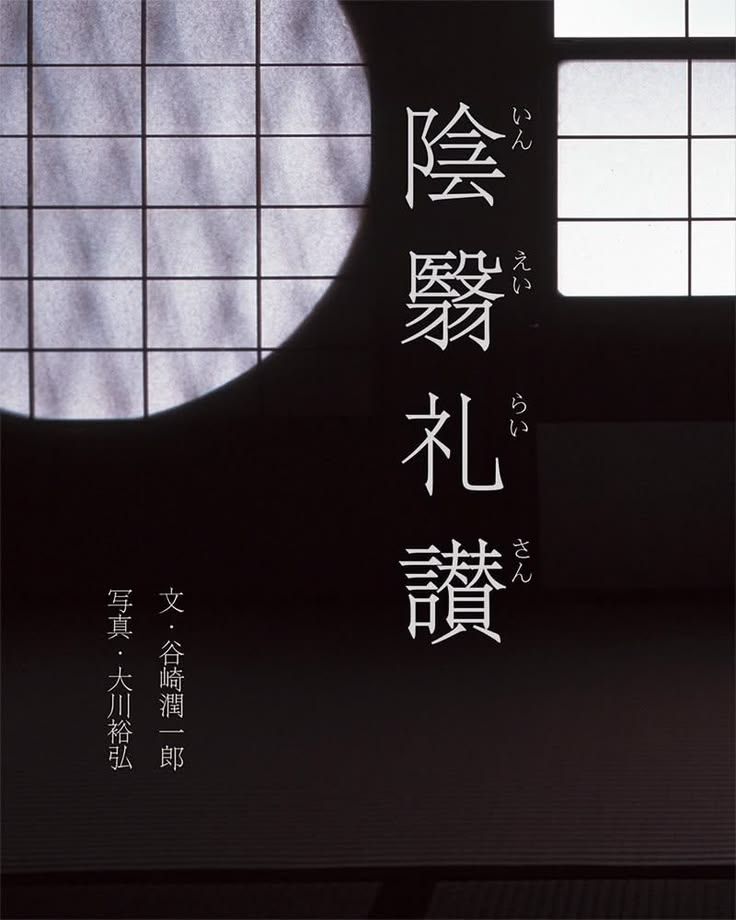
While Western design often leans on centered, symmetrical layouts, Japanese composition frequently embraces asymmetry — off-center focal points, diagonal lines, and uneven groupings that create tension and movement. This approach draws from traditions like ikebana flower arranging and garden design, where balance comes not from mirroring elements but from how they relate to one another. The result feels alive rather than static, guiding the eye through the composition rather than letting it settle in one place.
Balance does not require symmetry — only intention.
— Principle of asymmetrical composition, rooted in ikebana
Where These Principles Come to Life
Understanding the principles is one thing — seeing how they play out across different design disciplines is another. Japanese graphic design doesn't live in a vacuum; it shows up very differently depending on the medium.
Print Design
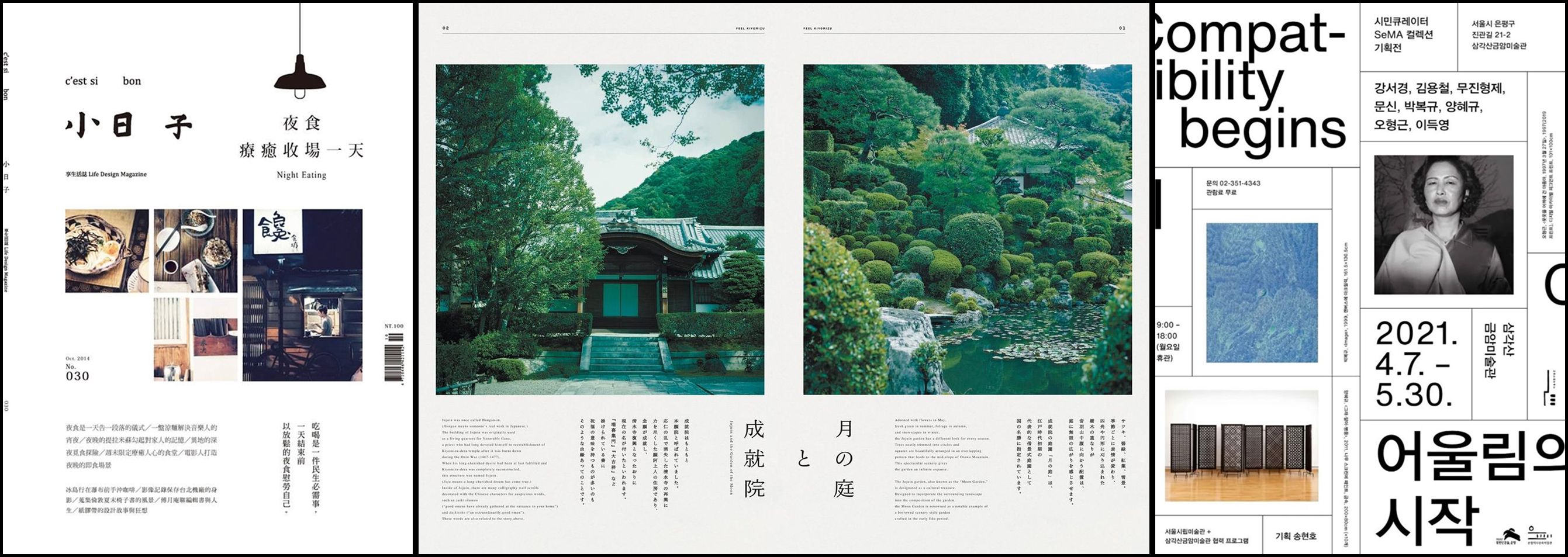
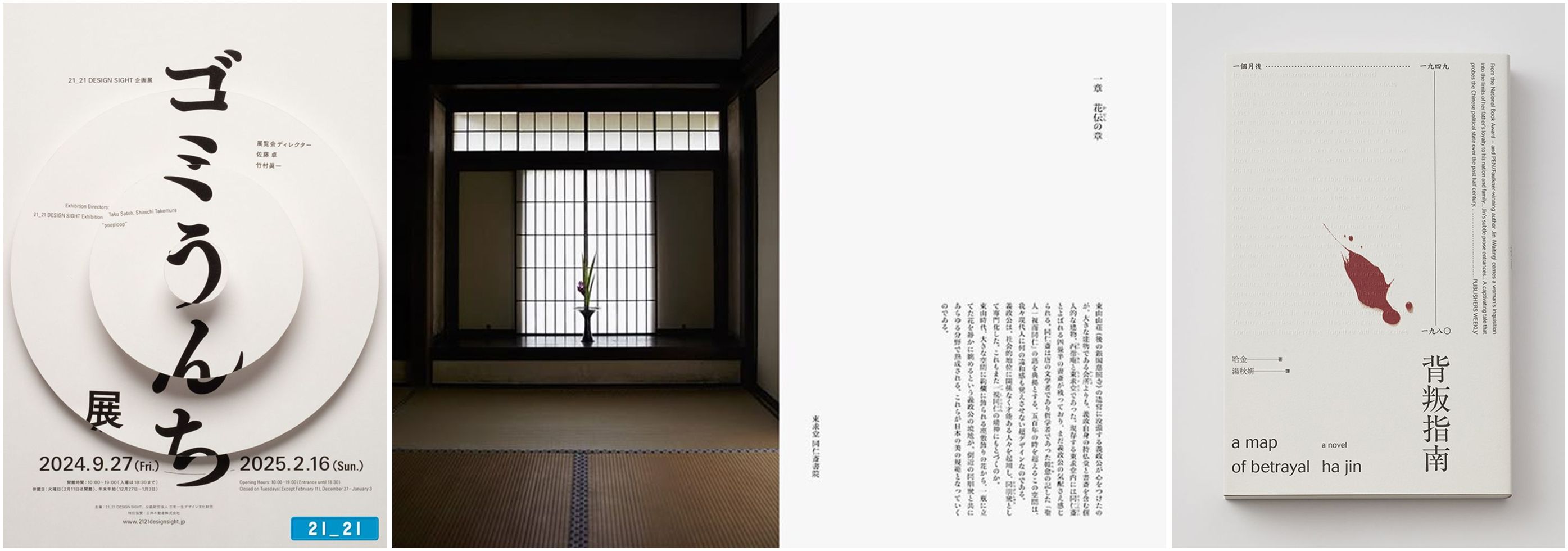
Japanese print design — books, magazines, editorial layouts, posters — is where the principles of ma and monozukuri are most purely expressed. Editorial layouts in Japanese publications often feel more spacious and deliberate than their Western counterparts, with generous margins and careful typographic hierarchy. Japanese book covers frequently use a single bold image or character against a restrained background, trusting the composition to do the work rather than filling every inch of the page.
Packaging Design
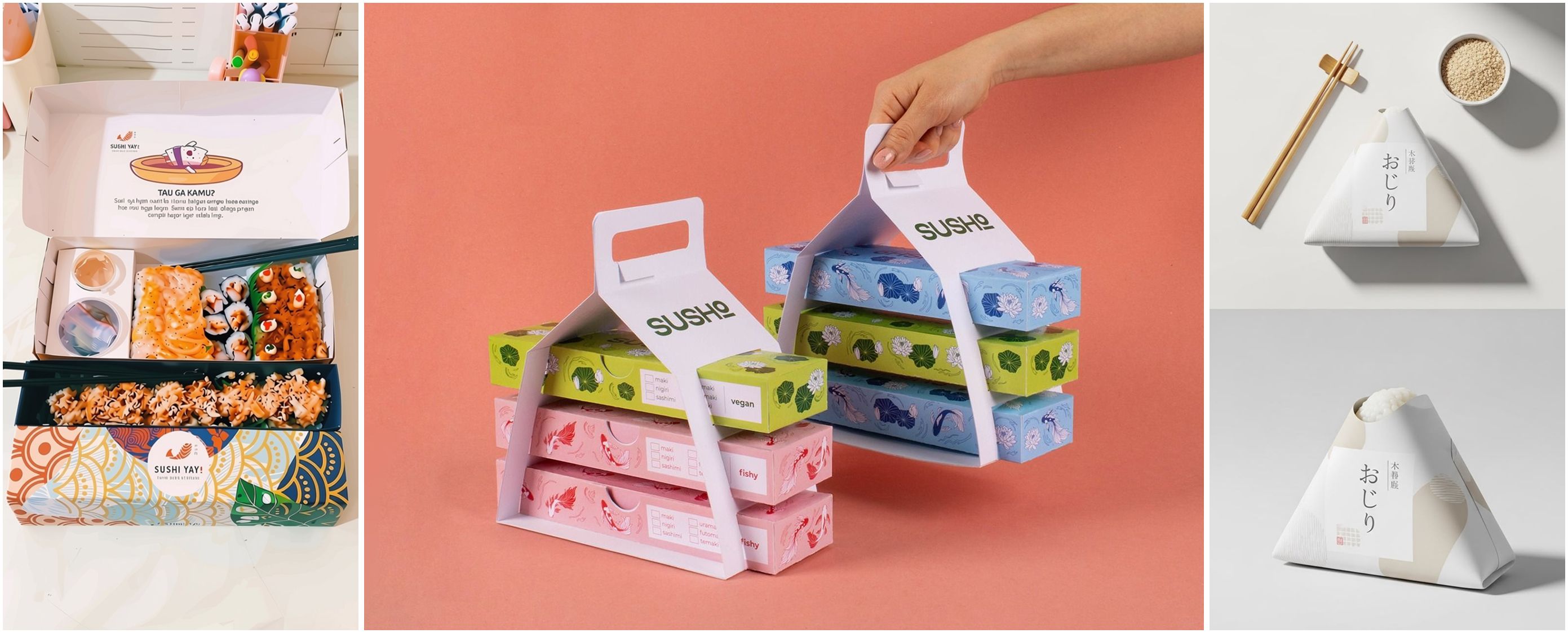
Japanese packaging is among the most admired in the world — and for good reason. Every surface is treated as a design opportunity. Color choices reference season or region. Typography is set with the same care as a poster. Structural choices — the shape of a box, the way a wrapper folds — are considered part of the visual language. The result is packaging that feels considered from every angle, not just the front face. Even everyday products like tea, sweets, or stationery arrive wrapped in a way that makes opening them feel like an event.
Outdoor Advertising
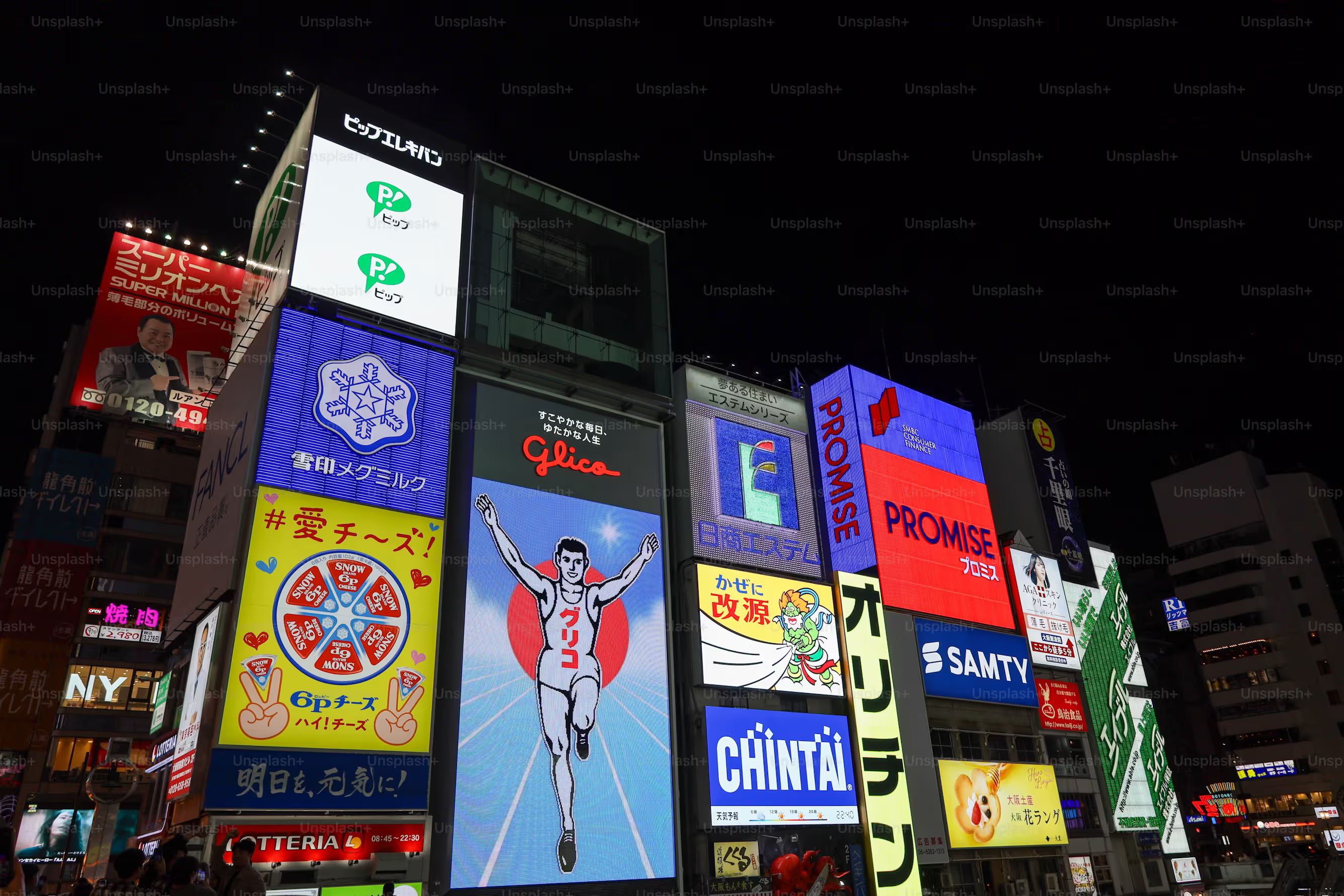
Japanese outdoor advertising operates in one of the most visually competitive environments in the world — the dense, layered streetscapes of Tokyo, Osaka, or Kyoto. Yet even here, the best Japanese design finds ways to breathe. Rather than shouting louder than the competition, strong Japanese outdoor work often does the opposite: a single bold character, an unexpected use of negative space, or a carefully placed color that makes a billboard feel calm against a chaotic backdrop. In a street full of noise, restraint becomes the most powerful visual tool of all.
From Principles to Practice: Tools and Inspiration
Whether you're applying these principles to a poster, a label, or a digital campaign, testing your work in context makes all the difference. Mockups let you see how negative space, color, and asymmetry actually hold up once a design is placed in the real world — on a wall, a product, or a screen. The Mockup plugin for Figma is a practical way to do this, letting you warp and place designs onto realistic print and product templates directly inside Figma. For curated templates, textures, and design assets that align with this kind of refined aesthetic, ls.graphics is worth exploring.
In Conclusion
Japanese graphic design is special because every discipline — print, packaging, outdoor — draws from the same deep well of principles: the breathing room of ma, the weight of a well-spaced character, the cultural precision of color, the discipline of monozukuri, and the aliveness of asymmetry. These aren't trends or stylistic preferences. They're a way of thinking about visual communication that has been refined over centuries. Whatever medium you work in, there's something to learn from the Japanese approach — and, more often than not, something to unlearn too.