3d Studio · Camera · 4 min read

Animate the camera

Key Zoom and Lens in the Camera panel of ls.graphics 3d Studio and play the move. In our test, Zoom went from 53 to 90 over 1.5 seconds.

To animate the camera in ls.graphics 3d Studio, scroll the right panel to Camera, move the playhead to a new time and change Zoom or Lens; with Rec on, each change places a key on the timeline. Result: a Zoom key at the start and at 1.5 seconds (53 to 90) and a Lens key at 1.5 seconds (30) on a 3-second iPad Pro shot.

Open the Camera panel

Open 3d Studio, click iPad Pro under Select mockup and scroll the right panel down to Camera. It lists Zoom, Lens and Fisheye. In our test, the iPad Pro opened with Zoom 53, Lens 12 and Fisheye 0 on a 3-second timeline. See Animate with keyframes for how Rec places keys.

Camera panel on the right listing Zoom 53, Lens 12 and Fisheye 0 next to the full iPad ProCamera panel on the right listing Zoom 53, Lens 12 and Fisheye 0 next to the full iPad Pro
The Camera panel starts with Zoom, Lens and Fisheye.

Key a Zoom move

Click the ruler at 1.5s, type 90 in Zoom and press Enter. The canvas zooms in on the screen, and a diamond appears on the Zoom row at 1.5s, with a second one at 0.0s.

Zoom 90 with the playhead at 1.5 seconds, a zoomed-in screen and keys on the timelineZoom 90 with the playhead at 1.5 seconds, a zoomed-in screen and keys on the timeline
Zoom 90 at 1.5s fills the canvas with the screen.

Key the Lens

At the same 1.5s, type 30 in Lens and press Enter. A Lens key appears at 1.5s next to the Zoom key.

Lens 30 and Zoom 90 in the Camera panel with the playhead at 1.5 secondsLens 30 and Zoom 90 in the Camera panel with the playhead at 1.5 seconds
Lens 30 is keyed at the same time as Zoom 90.

Check the channels in Pro Mode

Click Pro Mode and expand Camera. Its rows read Lens and Zoom: Zoom shows keys at 0.0s and 1.5s, and Lens shows one at 1.5s. Fisheye has no row because it was not changed. Click Auto Mode to return.

Pro Mode timeline with the Camera group expanded into Lens and Zoom rows with keyframe diamondsPro Mode timeline with the Camera group expanded into Lens and Zoom rows with keyframe diamonds
Camera shows a row for each value that was keyed.

Play the move

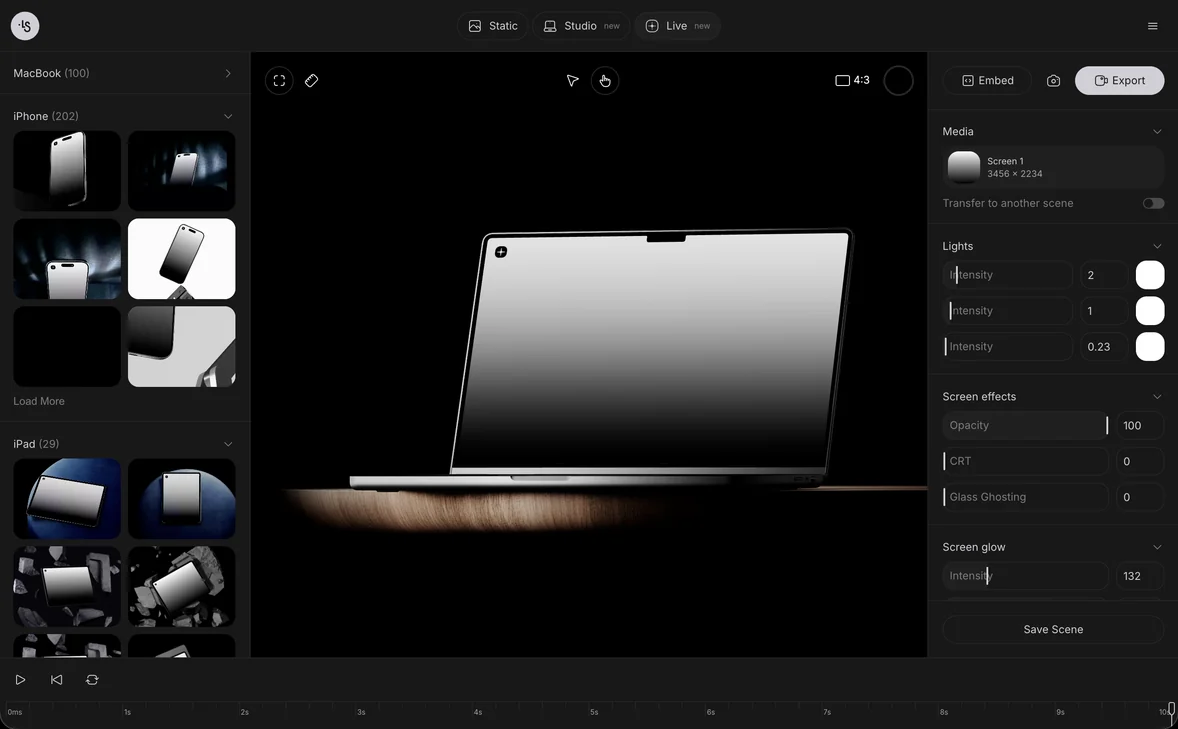
Click Back to start, then Play. The playhead runs along the timeline and the Play button turns into pause bars. Click it again to pause.

The timeline playing with the pause button shown and the playhead past 1 secondThe timeline playing with the pause button shown and the playhead past 1 second
While the move plays, Play shows pause bars.

Questions

How far can the Zoom slider go in 3d Studio?

In ls.graphics 3d Studio, the Zoom slider in the Camera panel ends at 1200. In our test, a click at the far end of the track set the value to 1187, while the iPad Pro opened at 53, so the slider leaves plenty of room to zoom in.

Which camera values can I animate in 3d Studio?

The Camera panel of 3d Studio holds Zoom, Lens and Fisheye. In our test, with Rec on, changing Zoom and Lens added Zoom and Lens rows under Camera in Pro Mode, while Fisheye stayed at 0 and got no row.

Why did a Zoom key appear at the start when I set one value?

With Rec on in 3d Studio, changing Zoom at 1.5 seconds placed a key there and a second key at 0.0s. In our test, the Lens row showed only the 1.5-second diamond, while the Zoom row showed two.

How do I preview a camera move in 3d Studio?

Click Play in the 3d Studio timeline. In our test, the playhead started moving and read about 1.2 seconds a moment later, and the Play button turned into pause bars. Click Back to start to return to 0.0s.

Try it in the 3d Studio

Keyframe the camera on a timeline and render a video.

Open editor