
3d Studio · Composition · 3 min read
Use guides and grids
Turn on golden ratio, safe area, column and grid guides over your 3d Studio shot, then clear them in one click.
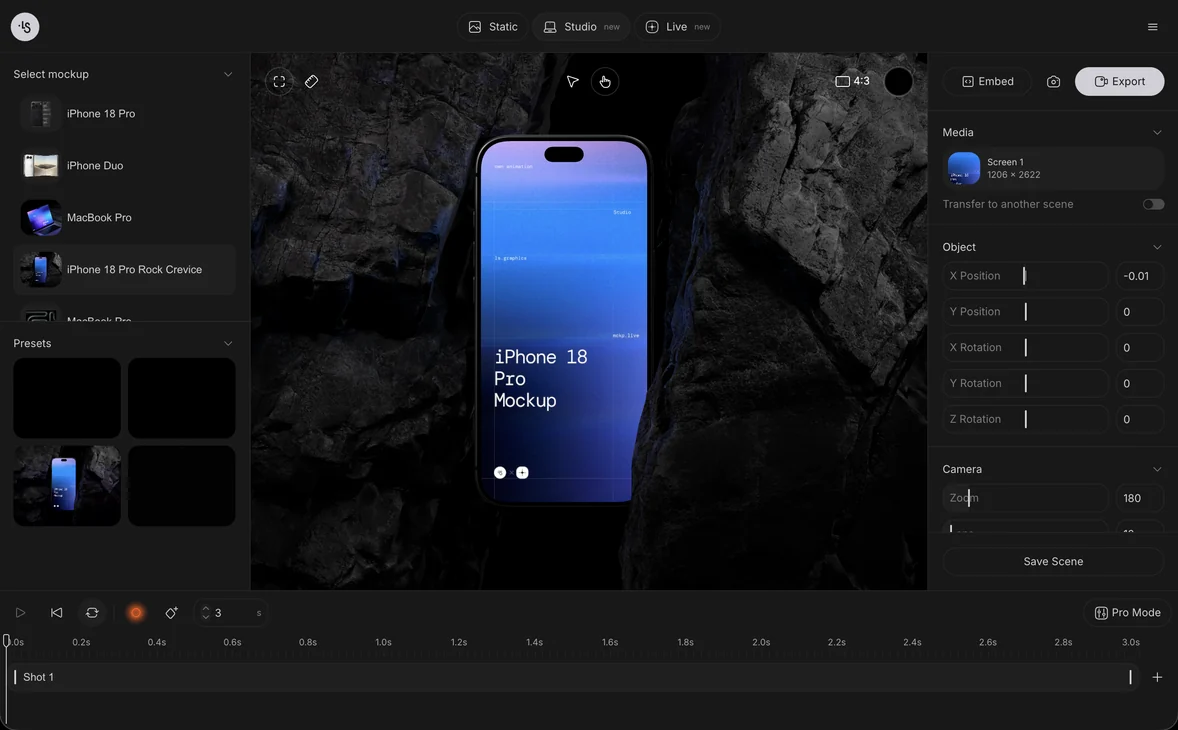
In ls.graphics 3d Studio, the ruler button at the top-left of the canvas opens the Guides card: Thirds, Golden, Center, Diagonals and Safe area overlays on ⌥1–⌥5, a Show rulers switch, and Add layout guide for Grid, Columns or Rows. Turn them on to place your device, then clear them in one click.
The guides sit on top of the canvas and help you line up the shot. In our test we used an iPhone Duo preset: open a scene first, as in Choose a preset or a model.
Watch guides and grids at work
Golden ratio, safe area, five columns and a 10 px grid on an iPhone Duo shot, then Clear guides.
Transcript
Click the ruler button at the top-left of the canvas. The Guides card opens.
Click Golden. Golden ratio lines appear over the shot.
Click Safe area. A frame appears inside the edges of the picture.
Drag the right edge of the safe area inward. An orange badge shows the margin, and all four edges move together.
Click Add layout guide. A Grid 10px guide is added.
Open its menu and choose Columns. Five column bands cover the shot.
Click Add layout guide again. A 10 px grid is drawn on top of the columns.
Click the reset button next to the card’s title. Golden and Safe area turn off; the layout guides stay.
Click the minus next to Column 5. The column guide is removed and the grid stays.
Open the Guides card
Click the ruler button at the top-left of the canvas, next to the Fill the canvas button. The Guides card opens with five rows, the Show rulers switch and the Add layout guide button.
Turn on the golden ratio
Click Golden. The golden ratio lines and spiral appear over the shot, and the row is highlighted. Click it again, or press ⌥2, to turn it off.
Drag the safe area
Click Safe area. A frame appears inside the edges of the picture. Drag any of its lines on the canvas: the margin changes on all four sides at once, and an orange badge shows it while you drag.
In our test, dragging the right edge 48 screen pixels inward moved all four edges by the same amount, and the badge read 155.
Add a column layout guide
Click Add layout guide. A new guide appears under the button as Grid 10px, with an eye button and a minus button. Open its menu and choose Columns.
The guide now reads Column 5 and draws five columns over the shot. Set Count, Gutter and Margin to fit your layout; they start at 5, 20 and 0.
Add a grid
Click Add layout guide again. The second guide stays a grid: Grid 10px, with Size 10. Its lines are drawn on top of the columns. Click the eye button to hide one guide without removing it.
Clear the guides
Click the reset button next to the Guides title. Every row from Thirds to Safe area turns off. Layout guides stay: remove each one with its minus button. Then close the card with ×.
When the shot is lined up, animate it as in Animate with keyframes, or start from Make your first 3D mockup video.
Result: in our test on an iPhone Duo preset, Golden, Safe area, five columns and a 10 px grid were on together, and one click on the reset turned the five rows off.