

3d Studio · Getting started · 2 min read
Choose a preset or a model
In ls.graphics 3d Studio, a mockup is the bare device and a preset is a finished animation of it. See what each one loads and how to preview presets.
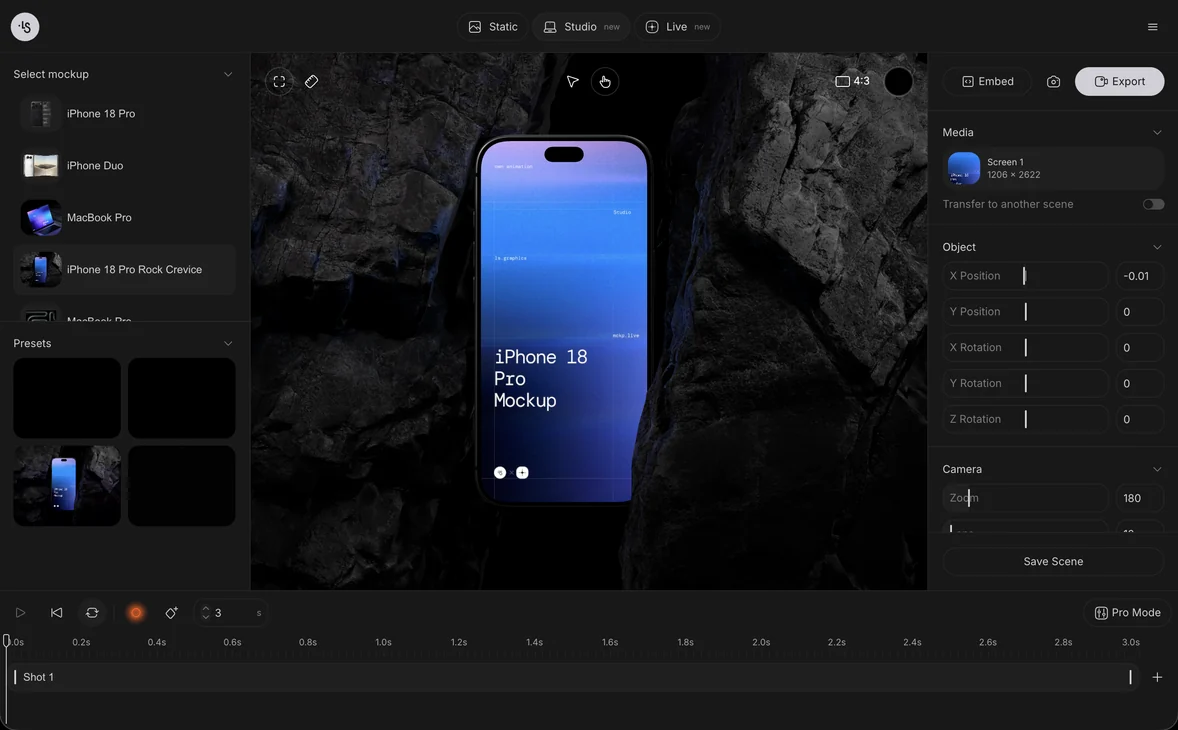
In ls.graphics 3d Studio, a mockup under Select mockup is the bare device with a 3-second timeline, and a tile under Presets is a finished animation of that device. Click a mockup to place the device, hover a preset to preview its clip, then click its Open icon to load the animation. Result: MacBook Pro as a 3-second scene, then as a 9-second preset with three shots.
Pick a mockup
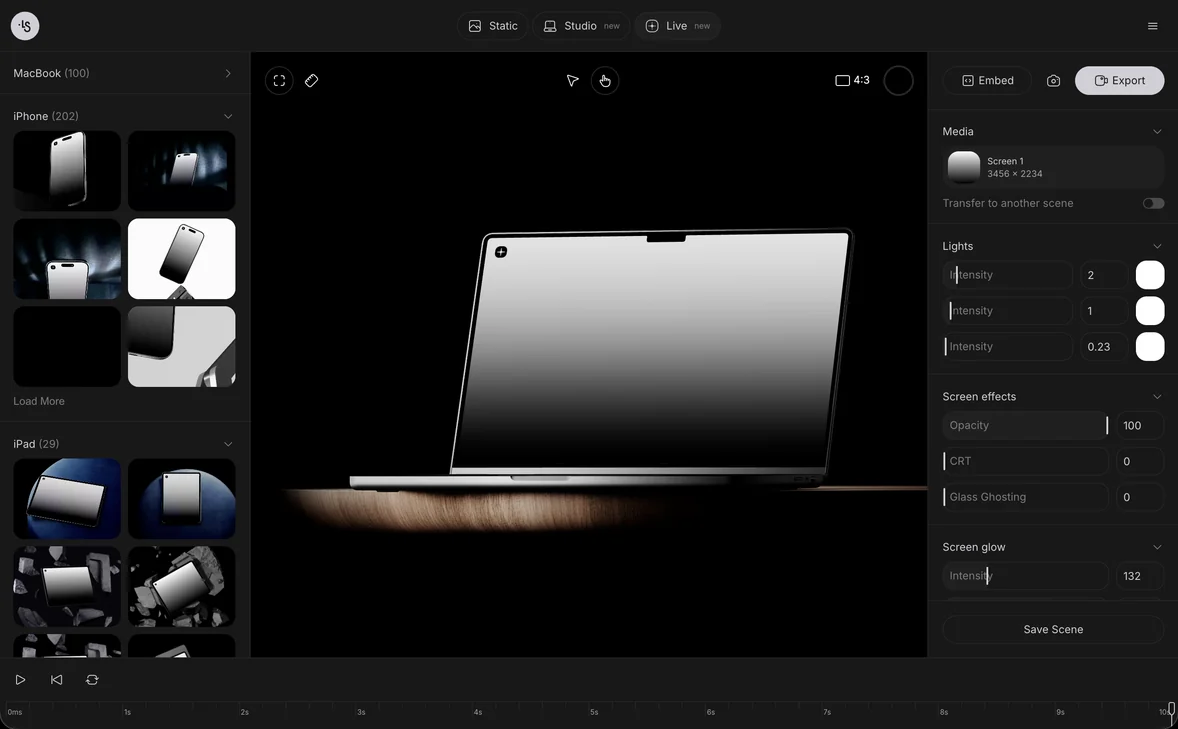
Open 3d Studio. In the left panel, under Select mockup, click the MacBook Pro with the blue thumbnail. The list scrolls and holds more devices, and a second entry is also named MacBook Pro.
Look at the bare model
The canvas shows the device with its own picture, and Media lists Screen 1 at 3456 × 2234. The timeline is 3 seconds long, holds Shot 1 and has no keyframes. Below, Presets lists three tiles for this mockup.
Hover a preset to preview it
Rest the pointer on the second tile. Its picture starts to move: in our test it turned from a front view to a view from above. A folder icon (Open) and a plus (Add to the timeline) appear on it.
Open the preset
Click the folder icon. The timeline grows to 9 seconds with Shot 1, Shot 2 and Shot 3, and Shot 1 shows its keyframes. The canvas shows the first frame, the MacBook closed and seen from above, and Open Lid reads 0. Media still lists Screen 1 at 3456 × 2234.
Press Play to watch it, as shown in Make your first 3D mockup video. The same timeline idea in Live Mockups is covered in Control the animation.