3d Studio · Media · 2 min read
Put your design on the 3D screen
Open Adjust media in ls.graphics 3d Studio, set the Scale of the picture on the 3D screen and switch on Transfer to another scene.
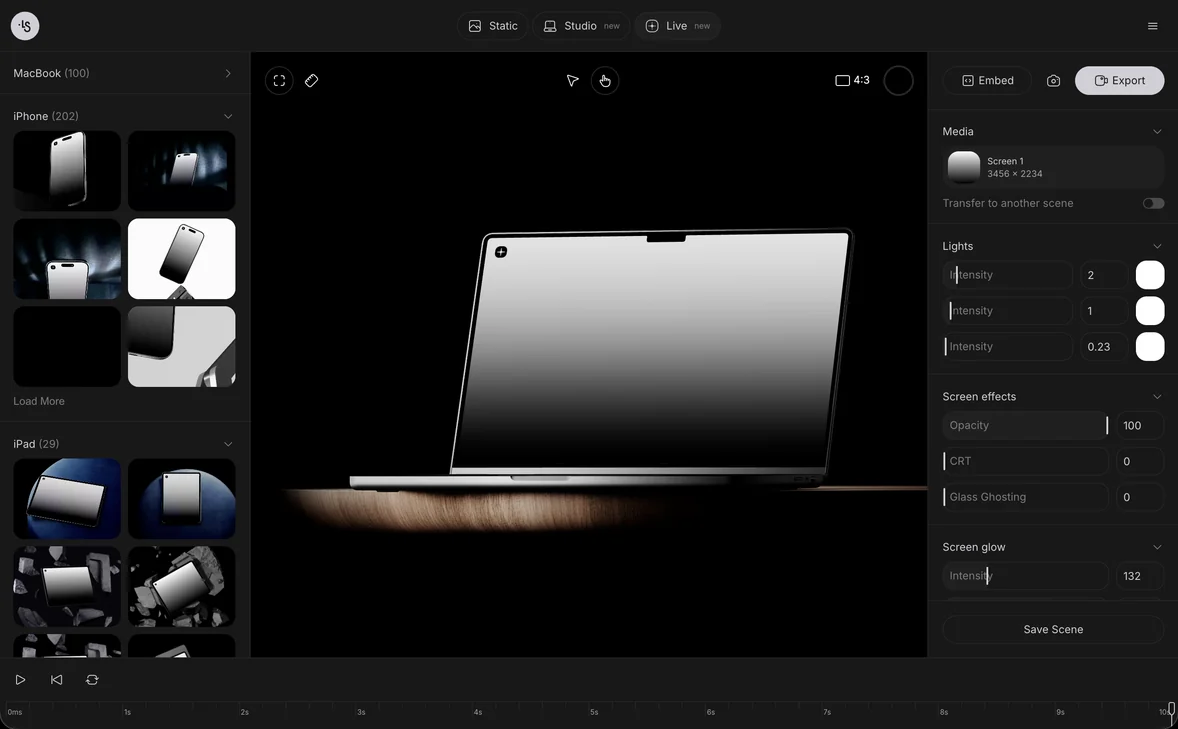
In ls.graphics 3d Studio, open the Media section in the right panel, click the Screen 1 tile to open Adjust media, and use Replace Media or Add Url to choose your own design for the 3D screen. Scale then resizes it. In our test, the HomeView scene listed Screen 1 at 1088 × 1088. Result: the HomeView screen zoomed to 125% in Adjust media.
Find the Media tile
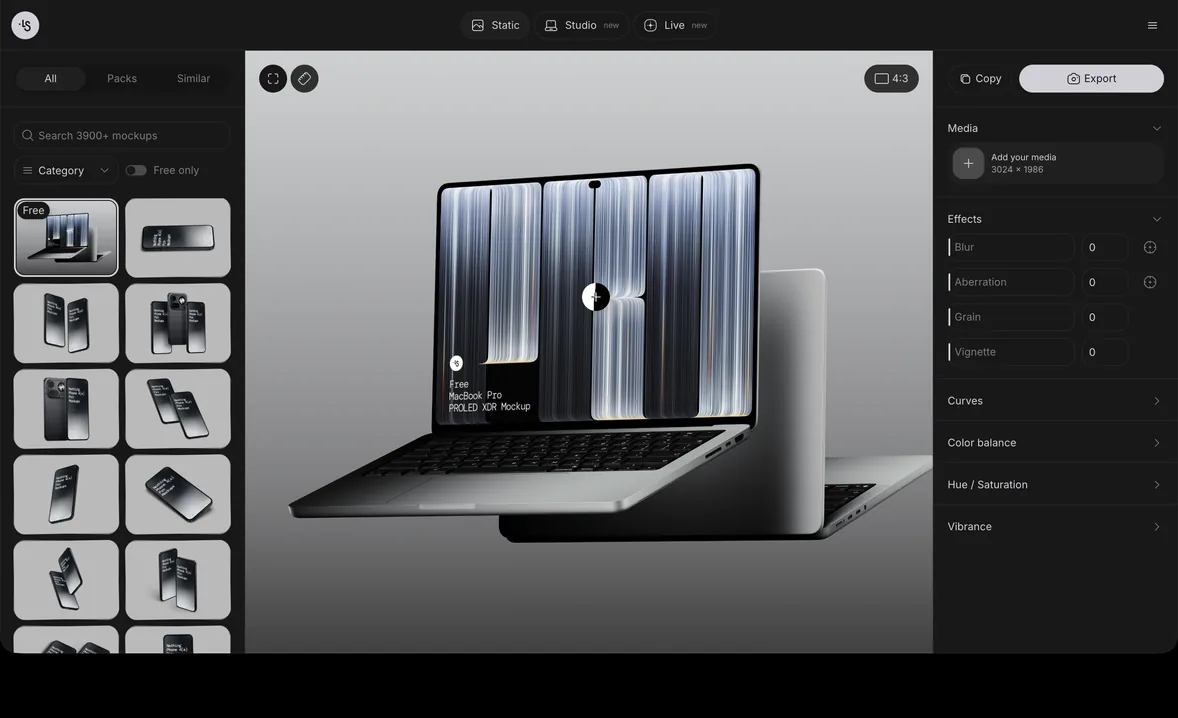
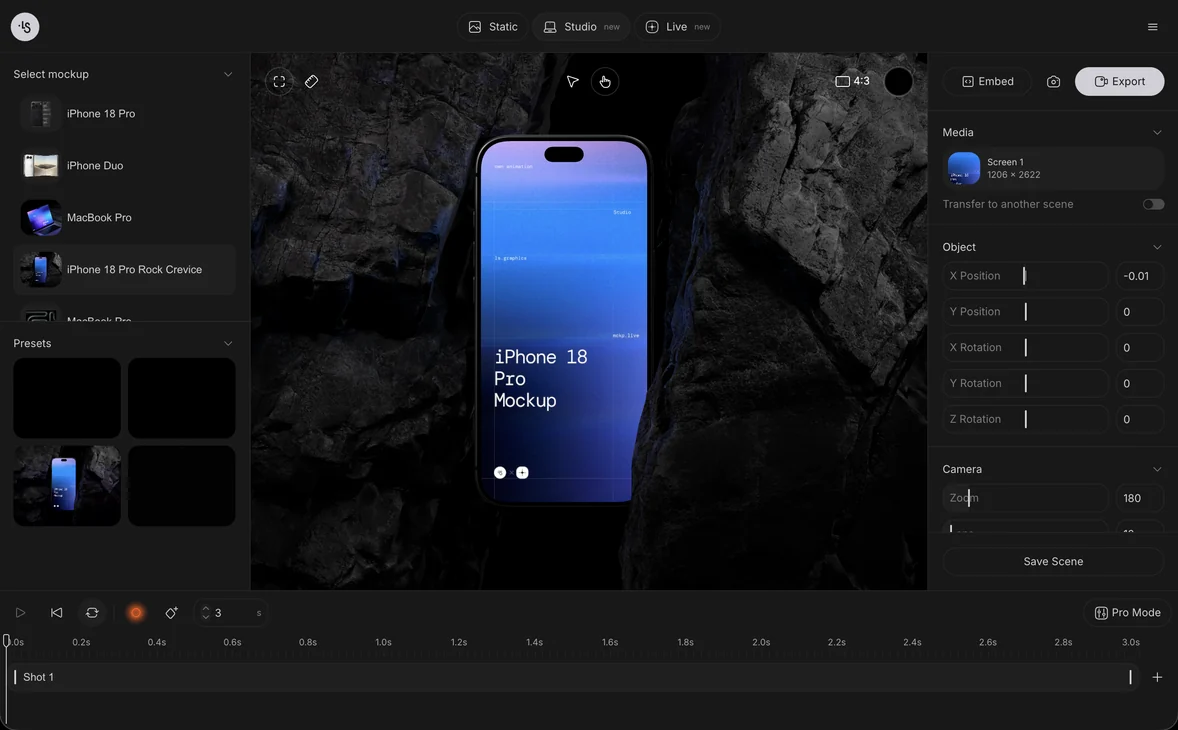
Look for Media at the top of the right panel. The Screen 1 tile shows the picture that is on the device screen and its size, here 1088 × 1088. Hover over the tile: a pencil (Edit media) and a cross (Remove media) appear.
Open Adjust media
Click the Screen 1 tile. The Adjust media window opens next to the right panel, with Replace Media and Add Url at the top, a preview of the current picture, a Scale field and an Okay button.
Choose your design
Click Replace Media to pick your own picture or video. In our test, the button opened the browser’s file picker. Add Url opens a Choose media prompt with a url field and an Add button instead. Close the prompt with its × to keep what is on the screen. This guide keeps the picture the scene opens with, so the next steps work on it.
Set the scale
Click the Scale field, type 125 and press Enter. The preview and the screen on the canvas zoom in together. The field starts at 100.
Close Adjust media
Click Okay. The window closes and the Screen 1 tile stays in the Media section.
Switch on Transfer to another scene
Click Transfer to another scene, under the Screen 1 tile. The switch moves to the on position.
Try another mockup
Under Select mockup, click Galaxy Tab S11 Ultra. The switch stays on, and Screen 1 now lists 2960 × 1848, the size of this mockup’s own picture.
Pick a mockup first in Choose a preset or a model, or start with Make your first 3D mockup video.