

3d Studio · Media · 3 min read
Scroll a website on a screen
Put a live website on a device screen in 3d Studio with Add Url and Longscroll, so the page scrolls from top to bottom while the scene plays.
To make a website scroll on a device screen in ls.graphics 3d Studio, click Screen 1 under Media, choose Add Url, type the address, pick Longscroll and click Add. 3d Studio captures the whole page, lets you set the scroll with Smooth or Stepped, Scroll speed and easing, and puts the scrolling clip on the screen.
Result: the MacBook Pro shows ls.graphics in a Safari window with the Dock, and the page scrolls while the scene plays. In our test the capture took about 15 seconds, and Media listed a 12-second clip, www.ls.graphics-scroll.mp4, at Scroll speed 1.
Watch a website scroll on the MacBook
Add ls.graphics with Add Url and Longscroll, set the scroll, use the device’s browser, save and press Play.
Transcript
The MacBook Pro scene is open in 3d Studio. Click Screen 1 under Media to open Adjust media.
Click Add Url. Type ls.graphics in the field and choose Longscroll.
Click Add. A status card reads Making the Longscroll while the page is captured; the film skips the wait.
The Add Url window shows a preview of the pass with Smooth, Scroll speed and Linear. Click Next.
Click Use the device’s browser. The window lists macOS, Web, the address https://www.ls.graphics/, Window size, UI size, Dock icons, Dock size and Wallpaper. Scroll to the bottom and click Save.
Media lists www.ls.graphics-scroll.mp4. Click Play: the scene plays and ls.graphics scrolls inside a Safari window with the Dock on the MacBook screen.
Open a scene with motion
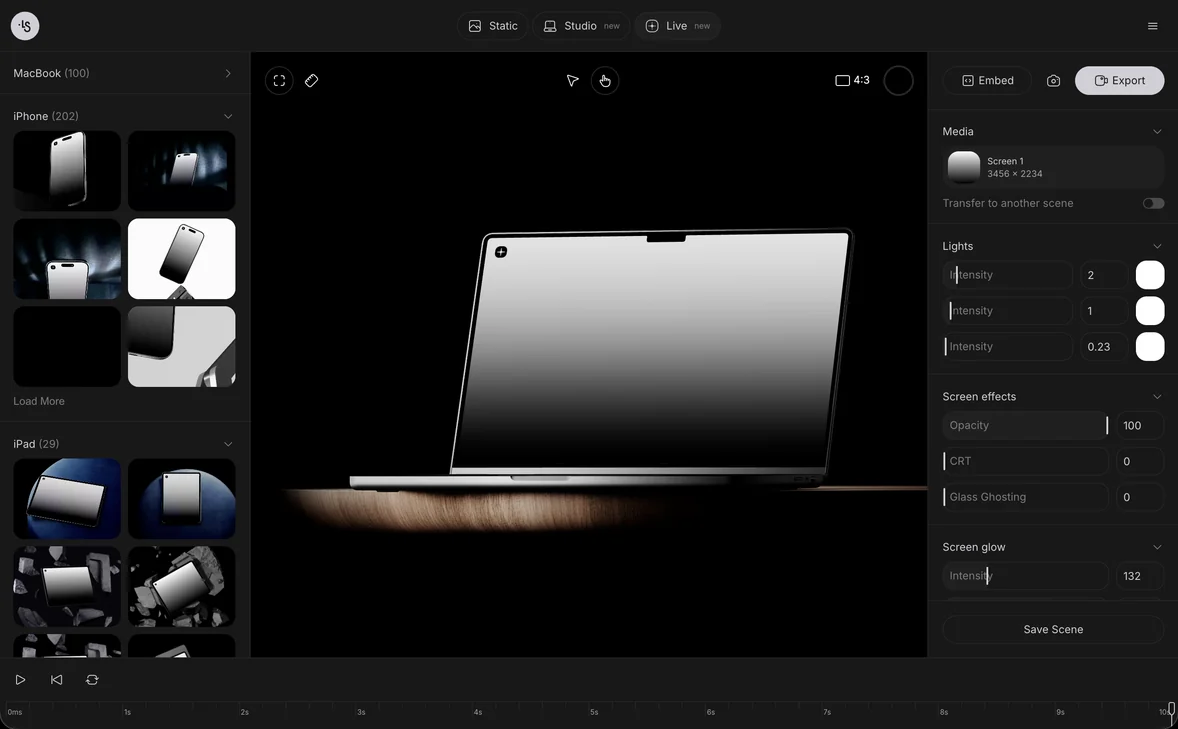
Open 3d Studio, choose MacBook Pro under Mockups, then pick an animation under Animation. This guide uses the first one. Click the four-corners button at the top-left of the canvas if you want the scene to fill the canvas. To find a scene, see Choose a preset or a model.
Open Adjust media
Click Screen 1 under Media in the right panel. The Adjust media window opens with Replace Media and Add Url at the top. The same window is used to put your design on a 3D screen.
Type the address and choose Longscroll
Click Add Url. In the Add Url card, type the address into the field, for example ls.graphics. The sun and the moon next to it choose the light or the dark version of the site; the moon reads Dark version when you point at it. Choose Longscroll instead of Screenshot.
Click Add and wait for the capture
Click Add. A dark status card reads Making the Longscroll, and the line under it follows the work: Loading the page, Scrolling the whole page, Stitching the page together. In our tests this took about 15 seconds for ls.graphics.
Set the scroll
The Add Url window opens with a live preview of the pass. Choose Smooth for a steady scroll or Stepped for a scroll that stops after each step. Scroll speed goes from 0.5 to 1.5; Stepped also adds Step height. The menu under it sets the easing: Linear, Ease In, Ease Out, Ease In Out, Smooth, Snap or Custom. Click Next.
Put the page in the device’s browser
If the window offers Use the device’s browser, click it to show the page inside a browser window on the device. Otherwise the device settings open right away.
Adjust the device and save
The window shows macOS, Web or App, a theme switch, the address, Window size, UI size, Dock icons, Dock size, and Wallpaper or Gradient with Upload own wallpaper. Change what you need, then scroll to the bottom of the window and click Save.
Play the scene
A few seconds after Save, Media lists www.ls.graphics-scroll.mp4 and the screen shows the page. Click Play under the canvas: the scene plays and the website scrolls inside the Safari window. To export the film, see Make a 3D mockup video.