
How to make a logo look 3D
You can make a logo look 3D in three ways: add depth with effects such as shadows and bevels in Figma or Illustrator, build a real 3D model in Blender, or place the flat logo on a 3D-rendered mockup scene. Effects are fastest, Blender gives true depth, and a mockup places the logo in a realistic setting.
What are the ways to make a logo look 3D?
There are three honest routes, and they solve different problems. The first fakes depth on a flat canvas, the second builds real geometry, and the third leaves the logo flat and puts it on a 3D object.
- Effects in a design tool: shadows and gradients in Figma, or the extrude tools in Illustrator. Quick, and the result stays a vector or an image you control.
- Real 3D in Blender: the logo becomes a solid model you can rotate, light and animate. It takes the most time to learn.
- A logo on a mockup scene: a 3D-rendered scene, such as a sign, a bottle or a bag, carries your flat logo. The depth comes from the object, not from the logo.
Before you pick, decide whether the logo itself needs to be 3D or whether it only needs to look good on real objects. Most client work needs the second, and many designers end up using routes one and three together.
How do you make a logo look 3D in Figma or Illustrator?
In Figma you suggest depth with effects; in Illustrator you can extrude the shape into a real 3D object. Both start from a clean vector logo, and both keep your original file untouched if you work on a copy.
In Figma
Figma's effects are drop shadow, inner shadow, layer blur, background blur, noise, texture and glass. A layer can hold up to eight drop shadows and eight inner shadows, and you can combine effects with blend modes and fills. Stacking a soft drop shadow, a tight inner shadow and a gradient fill gives a raised or embossed look. This is an illusion: the shape stays flat, so it looks right from the front and nowhere else.
In Illustrator
Adobe's 3D and Materials panel offers Plane, Extrude, Revolve and Inflate as object types. Select your vector logo and choose Extrude. Depth runs from 0 to 2000, and the Bevel settings (shape, width and height) soften the edges. The Rotation settings turn the object on the X, Y and Z axes, which gives you the angled view.
Adobe also documents the older route under Effect > 3D and Materials > 3D (Classic) > Extrude & Bevel (Classic). Use whichever your version has. The menu labels differ between versions, so check yours against the docs.
How do you make a 3D logo in Blender?
Import the logo as curves, give the curves depth with the extrude and bevel settings, add a material and a light, then render. Blender is free and gives real geometry, so you can render the logo from any angle or animate it. The cost is a learning curve.
- Prepare the logo as an SVG made of paths. Blender's importer reads only path geometry and ignores gradients, fills, strokes, text objects, images and filters, so convert text to outlines and keep the artwork to solid shapes.
- Choose File > Import > SVG as Curves (.svg). The curves appear in the XY plane and may need rescaling, because they follow the SVG document units.
- Open the curve's Geometry panel. Extrude and Bevel turn a line into a ribbon or a tube; the Bevel Depth sets the size of the cross section and Resolution sets how smooth it is. Blender's manual notes that imported curves can be extruded to create 3D text or logos.
- Add a material, a light and a camera, then render an image. Colors from your original file do not carry over, so you set them again in Blender.
It pays off when you need a hero image, a motion intro or a logo that rotates.
How do you put a logo on a 3D mockup scene?
Pick a 3D-rendered scene, drop your flat logo onto it, and export. The logo does not become 3D; the sign, bottle or bag it sits on is, and the light and shadow of the scene sell the depth. This is the quickest route to a convincing result, and it needs no 3D skills.
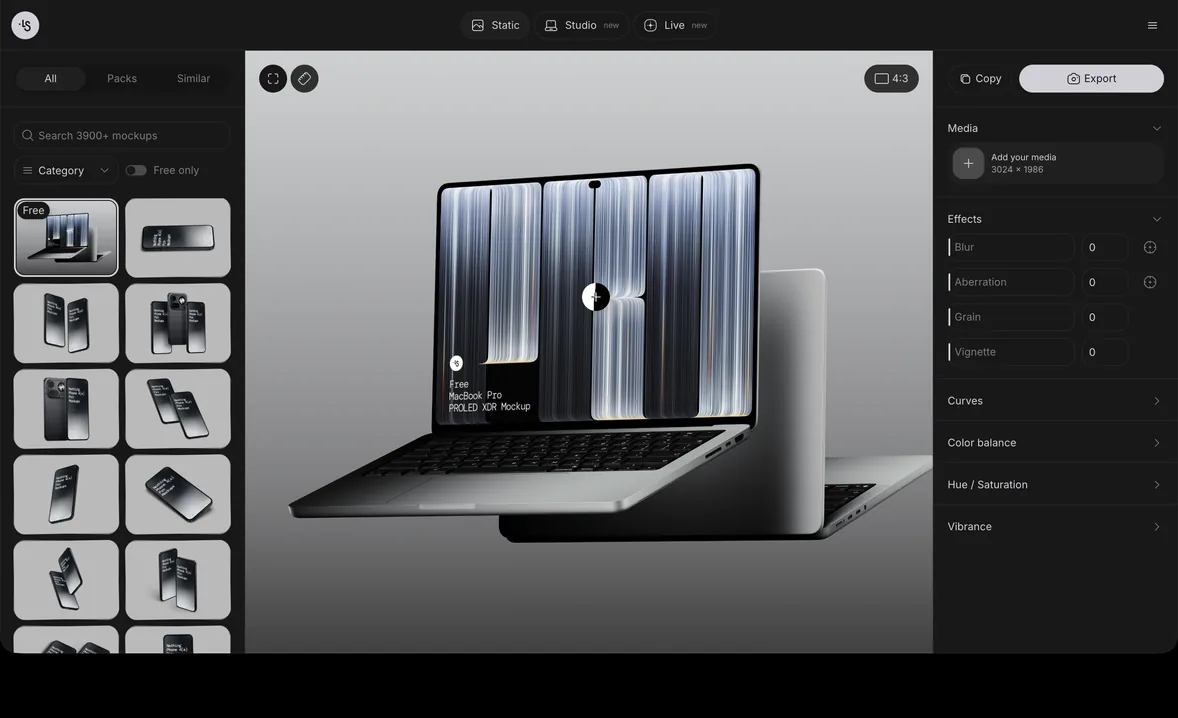
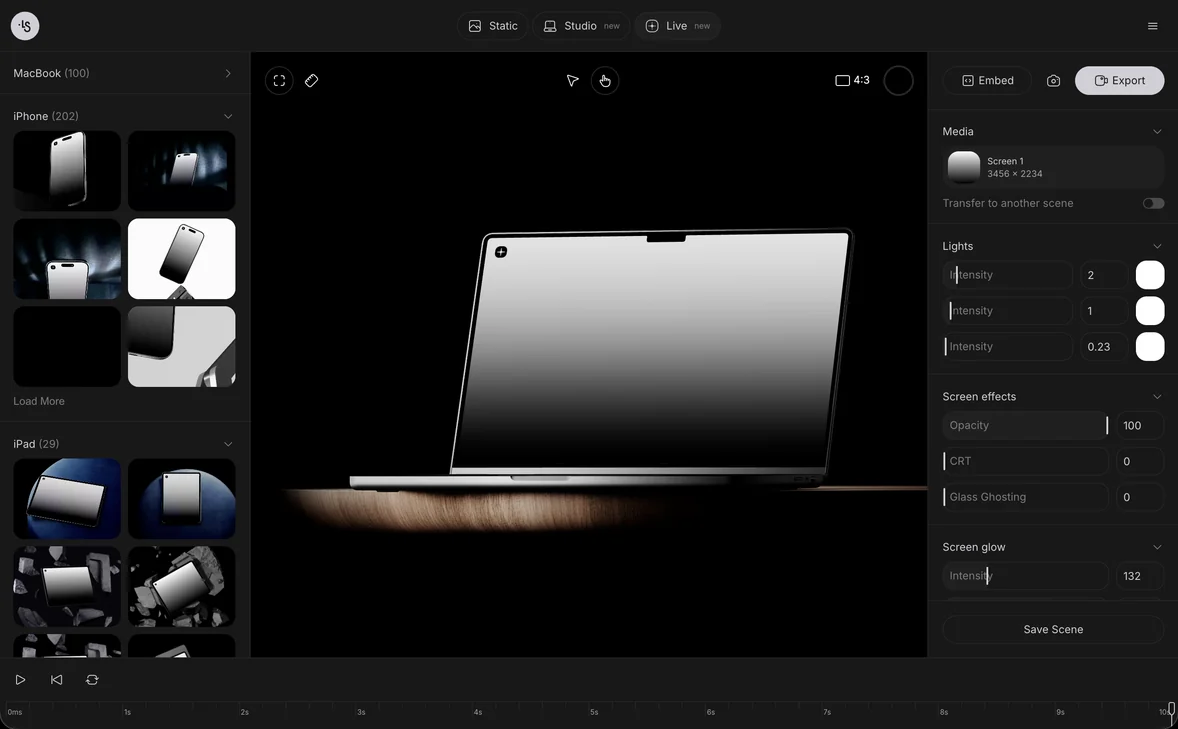
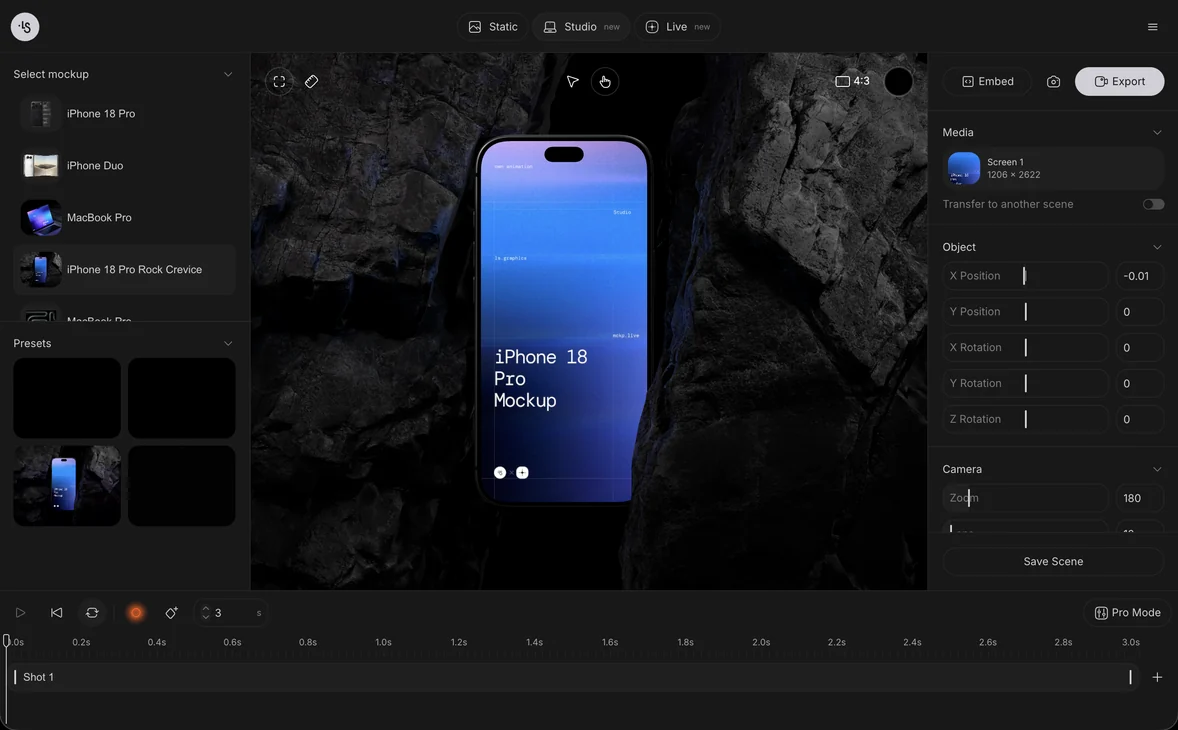
In the online mockup generator you drop or paste your design, change the color, the background and the light, then export a PNG, PSD, SVG or video, with nothing to install. The first mockup guide walks through it step by step, and the branding mockups are the place to look for signs, packaging, cards and bags. Some scenes are free: see the free mockups.
Use a vector logo with a transparent background, so the surface of the object shows through. Check a one-color version on dark or textured materials.
Which route suits which job?
Pick by what the logo must do next, not by which tool you know best.
- A quick raised or glossy look for a slide or a social post: Figma effects.
- A 3D wordmark for a poster or a title card, with control over the angle: Illustrator extrude.
- A logo that rotates, animates or sits in a custom 3D scene: Blender.
- A client presentation, a portfolio piece or a site mockup: a mockup scene.
- A logo that must still work flat on a document, an app icon or a favicon: keep it flat and use a mockup to show it in use. A mark that depends on 3D shading rarely survives one-color printing.
3D logo mockup examples
These ls.graphics scenes are 3D renders with room for your own logo:
- A bottle in a wooden gift box, for a label or a crest
- A square wall sign on a lavender wall, for a storefront view
- A tote bag in soft window light, for a bold wordmark
- A billboard on a pole, to test the logo at distance
- An envelope and business cards, for the stationery view
- An orange shopping bag held in one hand, for a retail look
FAQ
Can I make a 3D logo for free?
Yes. Blender is free software. Some ls.graphics mockups are free for personal and commercial projects; you sign in to download.
What file should I use to make a logo 3D?
Use a vector file. For Blender, export an SVG made of paths, and turn text into outlines first. A raster PNG cannot be extruded.
Should my main logo be 3D?
Usually not. A flat logo works everywhere: print, icons, small sizes and one color. Keep the flat version as the master and use 3D for specific pieces such as a hero image or a mockup.
Is a mockup the same as a 3D logo?
No. A mockup shows a flat logo on a 3D-rendered object. The logo is still 2D, but it looks real because the scene supplies light, shadow and material.
Read next
How to design a book cover (and what size it should be)November 20, 2026
Magazine cover design: size, layout and print file setupNovember 19, 2026
Etsy mockups: how to use mockups in your listingsNovember 19, 2026
How big should a t-shirt design be? Print sizes for designers and POD sellersNovember 18, 2026