

3d Studio · Easing · 4 min read
Smooth the motion with easing
Click the easing icon between two keyframes in ls.graphics 3d Studio and pick Linear, Snap or Custom to change how the motion speeds up and slows down.
To smooth the motion between two keyframes in ls.graphics 3d Studio, click the easing icon between the diamonds and choose a preset in the Easing popover, or drag the curve handles to make a Custom shape. Result: a 1.8-second Y Rotation move from 30 to −30 whose curve was changed from Ease In Out to Linear, Snap and Custom.
Make two keyframes
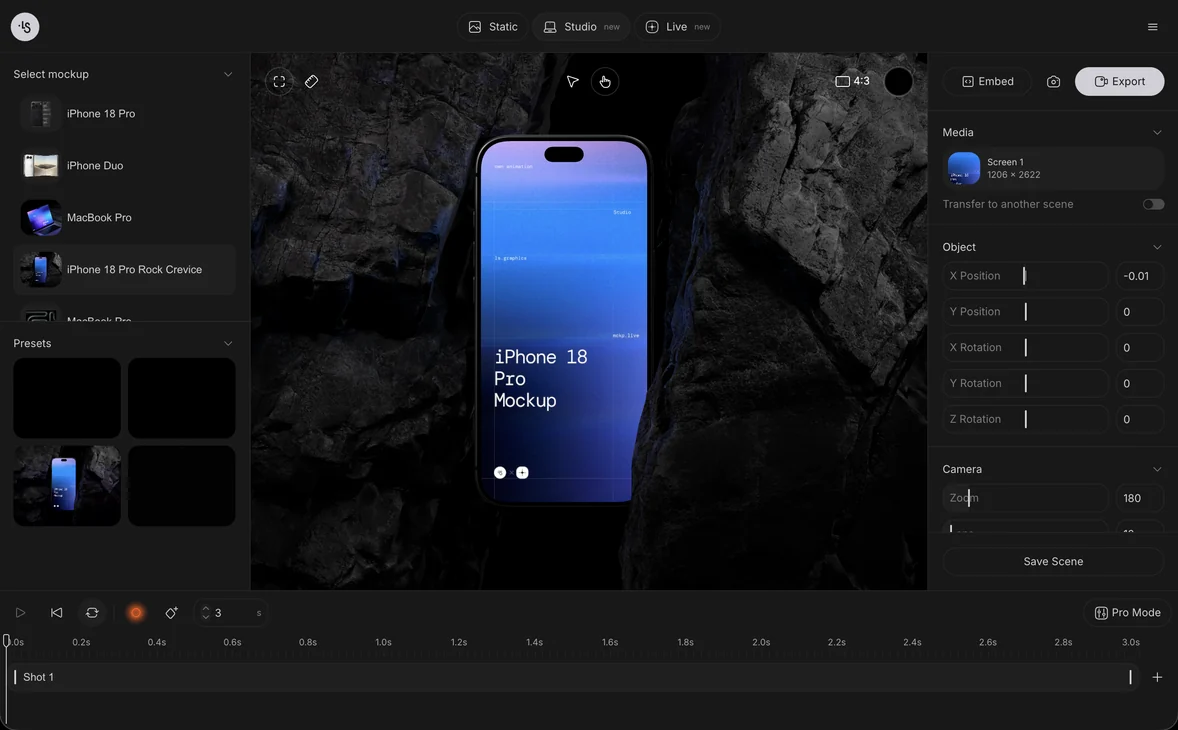
Open 3d Studio and click iPhone Duo under Select mockup. With Rec on, type 30 in Y Rotation at 0.0s, click the ruler at 1.8s and type −30. See Animate with keyframes for how Rec places keys. A round icon appears between the two diamonds.
Open the easing icon
Click the round icon between the keys. The Easing popover opens with Ease In Out selected and an S-shaped curve on the right. In our test the icon was labelled Easing, Ease In Out.
Pick Snap
Click Snap. The curve stays almost flat at both ends and rises steeply in the middle, so the move holds, snaps across and settles. The icon between the keys changes to match.
Pick Linear
Click Linear. The curve becomes a straight diagonal, so the rotation changes at a constant speed from key to key.
Shape a Custom curve
Click Custom, then drag the two small handles on the curve. The curve bends and the icon between the keys is labelled Easing, Custom.
Play the result
Close the popover with the × button, click Back to start and then Play. The rotation follows the curve you chose; in our test the Y Rotation read −16 at about 1.2s.